DLSS vs FSR: Which Upscaling Option Fits Your PC?
DLSS vs FSR matters when your game looks great but your frame rate can't keep up. Both technologies render a game at a lower internal resolution, then rebuild the image for your display. That reduces GPU work and can raise FPS. This is a vital part of pc gaming performance optimization.
DLSS often delivers cleaner image quality on supported NVIDIA GPUs. FSR works with far more graphics cards and appears in many games. Your best choice depends on your GPU, the game's support, your resolution, and what you notice during play.
How DLSS and FSR Improve Gaming Performance
Native resolution means the game renders every pixel your monitor displays. At 4K, that is over 8 million pixels per frame. Ray tracing, shadows, reflections, and dense scenes can push even the best gaming cpu gpu combo 2026 hard at that resolution.
Upscaling lowers the internal render resolution. A game might render at 1440p, for example, then reconstruct the picture for a 4K display. Because the GPU draws fewer pixels, frame rates can climb. This is especially helpful in cpu intensive vs gpu intensive games where the graphics card is struggling to keep up.
Dynamic resolution works differently. It changes the internal resolution on the fly to chase a frame-rate target. Upscaling can work alongside it, although the image may change more noticeably during busy scenes.
The tradeoff is image quality. Aggressive upscaling can soften distant detail, blur text, or create shimmer around fine objects. Fast movement can also expose ghosting or unstable edges.
Older spatial upscalers mainly use the current frame. Modern methods also use motion data and information from earlier frames. DLSS adds AI hardware to that process on RTX cards, while FSR focuses on broader hardware support. This level of control is similar to the efficiency gains seen when comparing directx 11 vs 12 for gaming.
What NVIDIA DLSS Does Differently
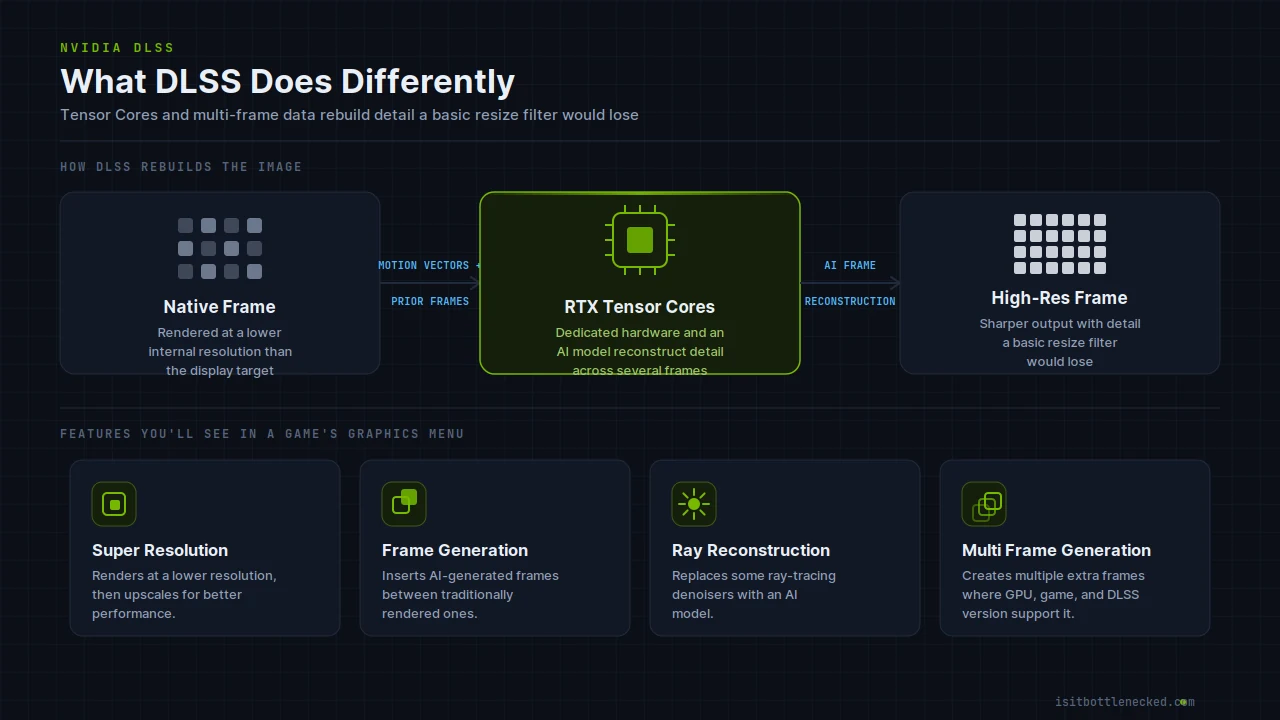
DLSS means Deep Learning Super Sampling. It uses NVIDIA RTX Tensor Cores and data from multiple frames to rebuild the image. That extra hardware helps DLSS retain detail that a basic resize filter would lose.
Game menus may list several DLSS features:
- Super Resolution improves performance by rendering at a lower resolution.
- Frame Generation inserts generated frames between traditionally rendered frames.
- Ray Reconstruction replaces some ray-tracing denoisers with an AI model.
- Multi Frame Generation can create multiple extra frames where the GPU, game, and DLSS version support it.
Those labels don't guarantee identical results. A game with a strong DLSS implementation can look excellent. Another title may show ghosting or soft details. Your RTX generation also determines which features you can use.
How AMD FSR Works Across More Graphics Cards
FSR, or FidelityFX Super Resolution, doesn't require NVIDIA Tensor Cores. That wider design makes it useful on AMD Radeon GPUs, Intel Arc cards, and many NVIDIA graphics cards. This makes it a great option for those using an older best am4 cpu for gaming 2026 who may not have the newest RTX hardware.
FSR upscaling rebuilds the rendered image for a higher output resolution. Newer FSR releases can also offer frame generation, which adds extra displayed frames to improve perceived smoothness.
Still, FSR support varies. A game's FSR version, engine, GPU, and developer settings all affect the result. Check the actual graphics menu instead of assuming every FSR-enabled game has the same options.
DLSS vs FSR: Image Quality, FPS, and Latency Compared
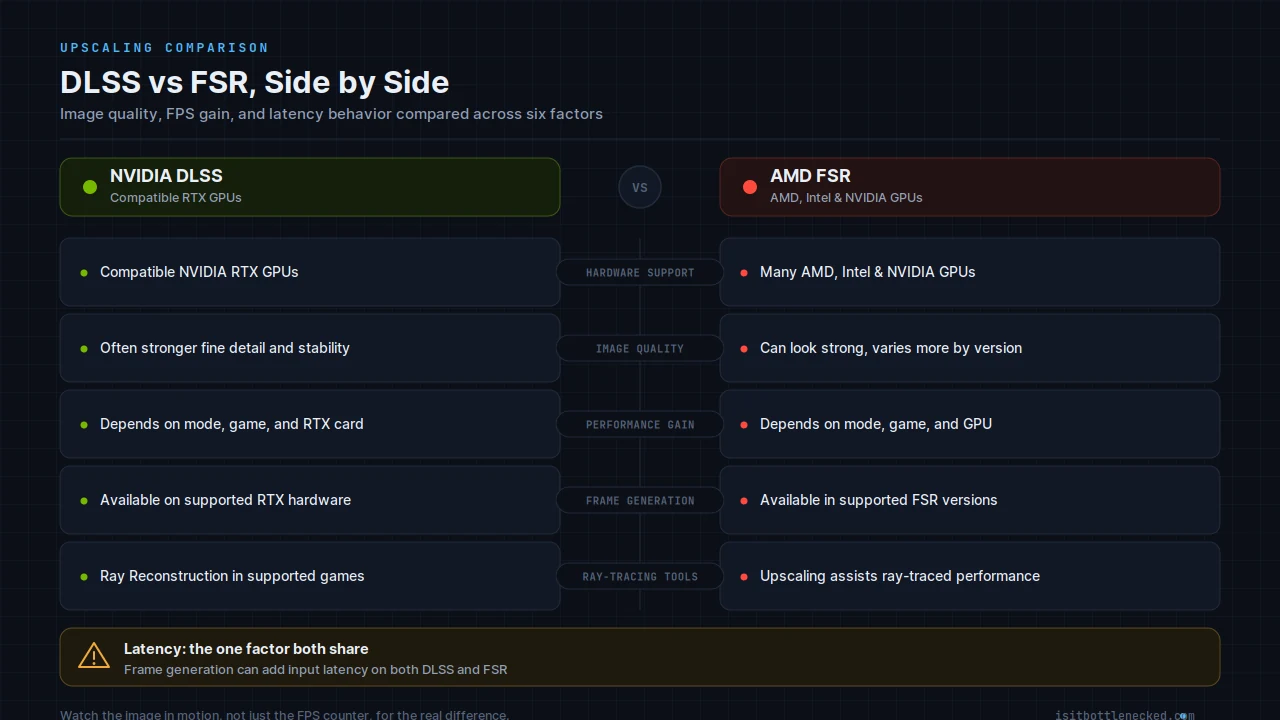
The DLSS versus FSR decision isn't a simple brand contest. At the same Quality mode, DLSS often has an edge in detailed scenes on compatible RTX cards. Yet FSR can produce a strong image, particularly at 1440p and 4K.
This quick comparison shows what usually separates the two options.
| Feature | NVIDIA DLSS | AMD FSR |
|---|---|---|
| Hardware support | Compatible NVIDIA RTX GPUs | Many AMD, Intel, and NVIDIA GPUs |
| Image quality | Often stronger for fine detail and stability | Can look very good, varies more by version |
| Performance gain | Depends on mode, game, and RTX card | Depends on mode, game, and GPU |
| Frame generation | Available on supported RTX hardware and games | Available in supported FSR implementations |
| Ray-tracing tools | Includes Ray Reconstruction in supported games | Upscaling can assist ray-traced performance |
| Latency | Frame generation can add latency | Frame generation can add latency |
Benchmark charts matter, but gameplay matters more. Watch the image while you turn quickly, run through foliage, or aim at a distant target. A higher FPS number has less value if the picture looks unstable or controls feel delayed.
Which One Looks Sharper in Real Games?
Fine details expose the gap fastest. Thin wires, tree branches, hair, chain-link fences, distant signs, and bright reflections can shimmer when an upscaler struggles. Fast camera movement may also leave a trail behind moving objects.
DLSS often preserves those details better in games with good support. It can reduce flicker and keep small objects steadier. However, FSR Quality mode can still look excellent when the starting resolution is high. To see how these technologies impact your specific setup, you can use the best bottleneck calculators to see which component needs the most help.
Avoid judging either option only in Performance mode. That setting starts with a much lower internal resolution. Compare Quality first, then Balanced, using the same scene and your normal camera movement.
Frame Generation Can Raise FPS, But It Is Not Free
Frame generation creates extra frames between rendered frames. Motion can look smoother, and the frame counter may rise sharply. However, generated frames don't replace real GPU performance.
Input latency can increase, especially when the base frame rate is low. You may also spot artifacts around HUD elements, fast-moving hands, particles, or objects crossing the screen. CPU limits and uneven frame pacing can reduce the benefit too. This is a common issue when you need to how to fix cpu gpu bottleneck situations.
Frame generation works best when the game already runs at a solid base frame rate.
Use a supported latency-reduction option when available. Then test the feature in active gameplay, not only in a quiet benchmark scene.
How to Choose Between DLSS and FSR for Your Gaming PC
Choose DLSS when you own a supported RTX card and the game has a strong DLSS implementation. Choose FSR when hardware compatibility or game support makes it the practical option.
If a game offers both, test each one. Use the same display resolution, quality mode, graphics settings, and location. A rainy street with reflections or a forest with thin branches will reveal more than a static menu screen. If you are looking to how to optimize gaming pc for high refresh rates, these settings are often the key.
Your GPU and the Game's Support Matter Most
First, confirm your exact GPU model. DLSS requires a compatible NVIDIA RTX GPU, while FSR may work across AMD, Intel, and NVIDIA hardware.
Next, check which upscaling version the game supports. Also check ray tracing, frame generation, and latency-reduction settings. A patch can improve image quality, add features, or change performance after launch.
Drivers matter as well. Update your GPU driver before comparing settings, especially after a major game update. For more context before tuning your system, use a pc bottleneck calculator to check whether your CPU or GPU may limit performance.
Best Settings for 1080p, 1440p, and 4K
At 1080p, use native resolution or a high-quality upscaling mode when possible. Lower internal resolutions have less image data to rebuild, so aggressive modes can look soft. This can often be improved by ensuring you have the best ram for gaming 2026 to keep the data flowing smoothly.
At 1440p, Quality mode is a good starting point. Balanced can help when ray tracing or demanding settings pull FPS down. At 4K, Quality or Balanced often provides a convincing image while freeing substantial GPU performance.
Watch for blurry text, ghosting, shimmer, and input delay. If ray tracing crushes performance, lower its quality before switching to an overly aggressive upscaling mode.
Final Thoughts on DLSS vs FSR
DLSS is usually the stronger image-quality choice on supported NVIDIA RTX hardware. FSR offers wider compatibility and can deliver excellent results when a game implements it well.
Game support, resolution, frame-rate goals, and frame generation settings matter more than brand loyalty. Test both options in the games you play, then keep the one that gives you the clearest picture and the smoothest response for the overall lifespan gaming pc.