Cpu Intensive vs GPU Intensive Games: How I Tell What’s Holding My FPS Back
A PC that screams through Windows can still tank the moment a match starts. Slow loading, sudden frame drops, stutters that vanish when you alt-tab back. You know something's wrong. You just don't know what.
Nine times out of ten it's one of two things: the CPU can't keep up, or the GPU can't keep up. They fail differently, they fix differently, and you can usually tell which one it is in under a minute — without running any benchmarks or buying anything.
That's what this covers.
Cpu intensive vs gpu intensive games, the simple way to tell them apart
Think of it this way.
The CPU plans the work and issues orders. The GPU draws what you actually see — millions of pixels, every second. One's the brain, one's the paintbrush.
If the brain falls behind, the paintbrush just waits. If the paintbrush falls behind, the brain is sitting there ready, but the screen still crawls.
What each one handles:
CPU: AI, physics, hit reg, pathfinding, lots of units or players, game logic, loading assets GPU: resolution, textures, shadows, lighting, reflections, post-processing, ray tracing
One thing worth knowing upfront: high GPU usage is not a problem. Running 95–100% in most games just means it's working. The weird sign is GPU usage stuck at 50–70% while your FPS still won't move. That's almost always the CPU.
If you want to avoid a bad pairing before any of this becomes relevant, I start with balanced CPU-GPU combos and work backward from the games I play and the monitor I'm running.
What makes a game CPU-intensive (Cpu intensive vs gpu intensive games clues)
CPU-heavy games aren’t “pretty” problems, they’re “too much happening” problems. I notice it most when a game has to track a lot of things at once.
Signs I’m in a CPU-style game:
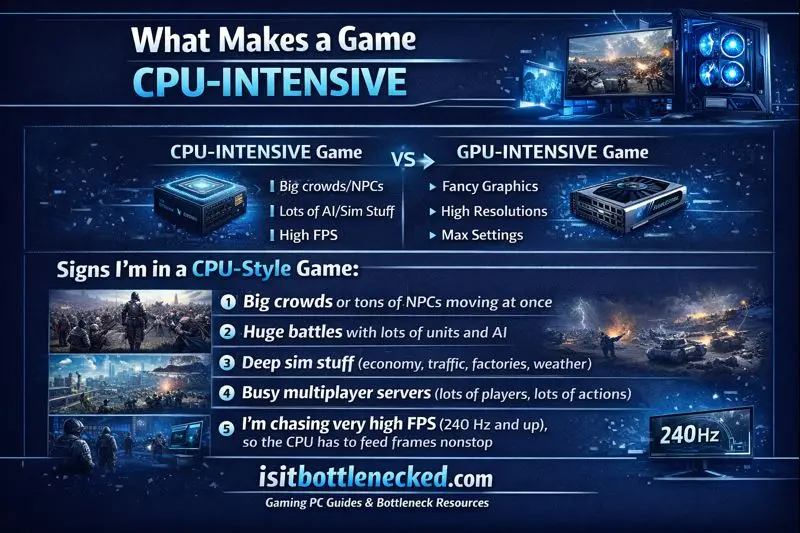
- Big crowds or tons of NPCs moving at once
- Huge battles with lots of units and AI
- Deep sim stuff (economy, traffic, factories, weather)
- Busy multiplayer servers (lots of players, lots of actions)
- I’m chasing very high FPS (240 Hz and up), so the CPU has to feed frames nonstop
Real examples that often feel CPU-limited on many PCs: Cities: Skylines II, late-game Total War battles, Factorio, modded Minecraft, and competitive shooters at low settings where the GPU finishes frames fast.
What makes a game GPU-intensive (Cpu intensive vs gpu intensive games clues)
GPU-heavy games are simple to spot once you’ve seen it: the game looks amazing, and the GPU is sweating.
What pushes the GPU hardest:
- Higher resolution (1440p and especially 4K)
- Ultra textures, shadows, and lighting
- Reflections and heavy post processing
- Ray tracing (this one can crush FPS fast)
Examples I think of right away: Cyberpunk 2077, Alan Wake 2, Starfield, Hogwarts Legacy.
Most of the time, modern AAA games at high settings end up GPU-limited, especially at 1440p and 4K. That’s why lowering graphics often helps in these titles.
How I test if a game is CPU-bound or GPU-bound on my PC
I don’t start with guesses. I run two fast tests and watch what changes. The goal is to see what the game is “waiting on.”
Before I test, I keep it clean:
- I close browsers and launchers
- I reboot if my PC’s been on all day
- I pick a repeatable spot (same area, same scene)
Fast checks that work in 5 minutes (resolution drop test, settings test, GPU usage)
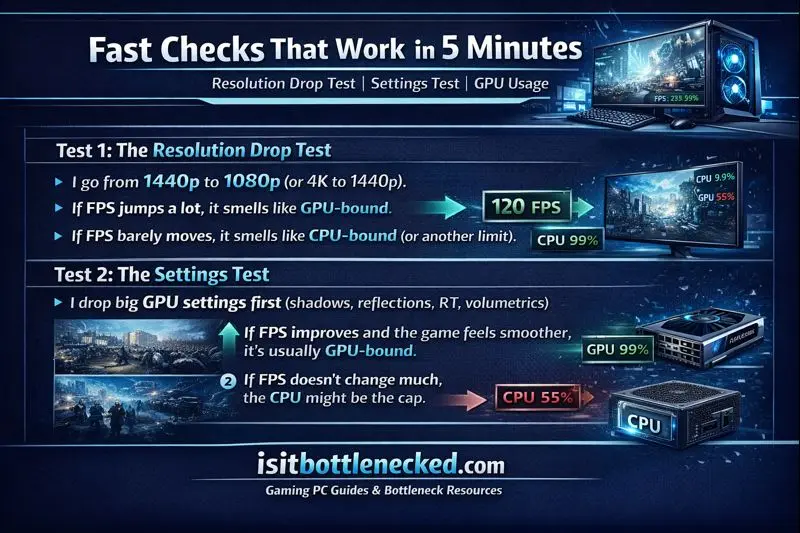
Test 1: The resolution drop test
- I go from 1440p to 1080p (or 4K to 1440p).
- If FPS jumps a lot, it smells like GPU-bound.
- If FPS barely moves, it smells like CPU-bound (or another limit).
Test 2: The settings test
- I drop big GPU settings first (shadows, reflections, RT, volumetrics).
- If FPS improves and the game feels smoother, it’s usually GPU-bound.
- If FPS doesn’t change much, the CPU might be the cap.
What I look for
- GPU near 98 to 100% and FPS scales with resolution, that’s GPU-limited.
- GPU under 70% while FPS is stuck, that’s often CPU-limited.
- Frame time spikes (those little hiccups) matter more than average FPS. A game can show 120 FPS and still feel bad if frames arrive unevenly.
If you want a deeper checklist for “what is a bottleneck and how do I spot it,” I’ve found CPU and board combos helpful because it forces you to think about balance, not just buying the biggest GPU you can afford.
The sneaky stuff that can look like a CPU or GPU problem (RAM, background apps, storage)
Sometimes it’s not Cpu intensive vs gpu intensive games at all. It’s the support parts.
What can fake a CPU or GPU issue:
- Not enough RAM: the game swaps to disk and stutters
- Background apps: overlays, browsers, updates, RGB software
- Slow storage: open worlds hitch when streaming assets
- Shader compilation: first run stutter is real in many modern games
Quick fixes I use:
- Close browser tabs and overlays
- Cap FPS a bit under my monitor refresh (reduces spikes)
- Update GPU drivers, then restart
- Watch RAM usage, if I’m near the limit, I fix that first
- Install the game on an SSD if it isn’t already
What to upgrade first, based on the games you play and your monitor
Upgrades are simple when you tie them to your target. I pick a resolution, a refresh rate, and the games I play most. Then I spend based on what’s likely to be the limit.
Here’s the cheat sheet I use:
| Your goal | Most likely limit | Upgrade focus |
|---|---|---|
| 1080p, 240 Hz esports | CPU, frame times | CPU first |
| 1440p, mix of games | Balanced | CPU or GPU based on tests |
| 4K, AAA on high/ultra | GPU | GPU first |
If you play CPU-heavy games, here’s how I build for smooth frames
My rules:
- Buy a strong gaming CPU (good single-core, strong cache helps a lot).
- Don’t pair a top-end GPU with an old CPU and expect magic.
- For competitive shooters on low settings, the GPU finishes frames fast, so the CPU becomes the wall.
If my 1% lows are bad (those dips that feel like stutter), a CPU upgrade often fixes the “why does this feel worse than the FPS number” problem.
If you play GPU-heavy AAA, here’s how I spend my money smarter
For 1440p and 4K AAA, I put more budget into the GPU, then I stop.
- I don’t overpay for a flagship CPU if my GPU is already maxed.
- I tune settings like ray tracing and use DLSS or FSR to hit my FPS target.
- I plan power early. New high-end GPUs can spike hard. For example, RTX 5080 builds can see short power spikes far above “steady” draw, so PSU headroom matters. This is why I keep RTX 5080 PSU planning on my build checklist.
Conclusion
Once you know the difference — CPU can't feed frames vs. GPU can't draw them — the upgrade decision basically makes itself. The checks are fast. The signs aren't subtle. And you'll almost never need to buy as much as you think.
If you want a shortcut, list your top 5 games, your resolution, and your refresh rate. I'll tell you what's actually worth upgrading for CPU-intensive vs GPU-intensive games.
FAQs about Cpu intensive vs gpu intensive games
Are most games CPU or GPU intensive in 2026? At high settings, 1440p, or 4K, most AAA games will push your GPU harder. Esports, sims, city builders, and strategy games are the exceptions — those can still eat through CPU headroom, especially if you're running 1080p at high refresh rates.
Why does lowering graphics not increase FPS in some games? Because the GPU isn't the problem. If the game is stuck on simulation, AI logic, or networking, cutting shadow quality does nothing — the CPU is already the ceiling. The tell is GPU usage dropping while FPS stays flat.
Is 1080p more CPU intensive than 1440p or 4K? Usually. Less GPU work means the CPU becomes the bottleneck sooner. You'll notice this most at 1080p 144Hz or 240Hz, where you're asking the CPU to crank out a lot of frames fast.
Can ray tracing make a game more GPU intensive? Yes, noticeably. Instead of faking lighting and shadows, ray tracing calculates them properly — which costs the GPU a lot more. A CPU that's nowhere near its limit won't save you here.
How do I stop stutter if my FPS looks fine? Stutter is frame time, not average FPS — they're different problems. Things worth trying: close background apps and overlays, update drivers and restart, make sure you have free RAM, move the game to an SSD. If it's a new install, let shader compilation finish. That first-session stutter often just goes away.