How To Fix CPU-GPU Bottleneck | 7 Proven Solutions
A lot of people have replaced a perfectly good GPU trying to fix a problem their CPU was causing. The card was sitting at 60%, the processor was pinned at 100%, and no amount of new hardware was going to change that until the right thing got upgraded.
That's what a CPU-GPU bottleneck actually looks like. Not a broken system — just a mismatch. One part is ready, the other can't keep pace, and the result is stutters and frame drops that feel random until you know what to look for.
The fix is usually cheaper than people expect.
What Actually Causes CPU-GPU Bottleneck
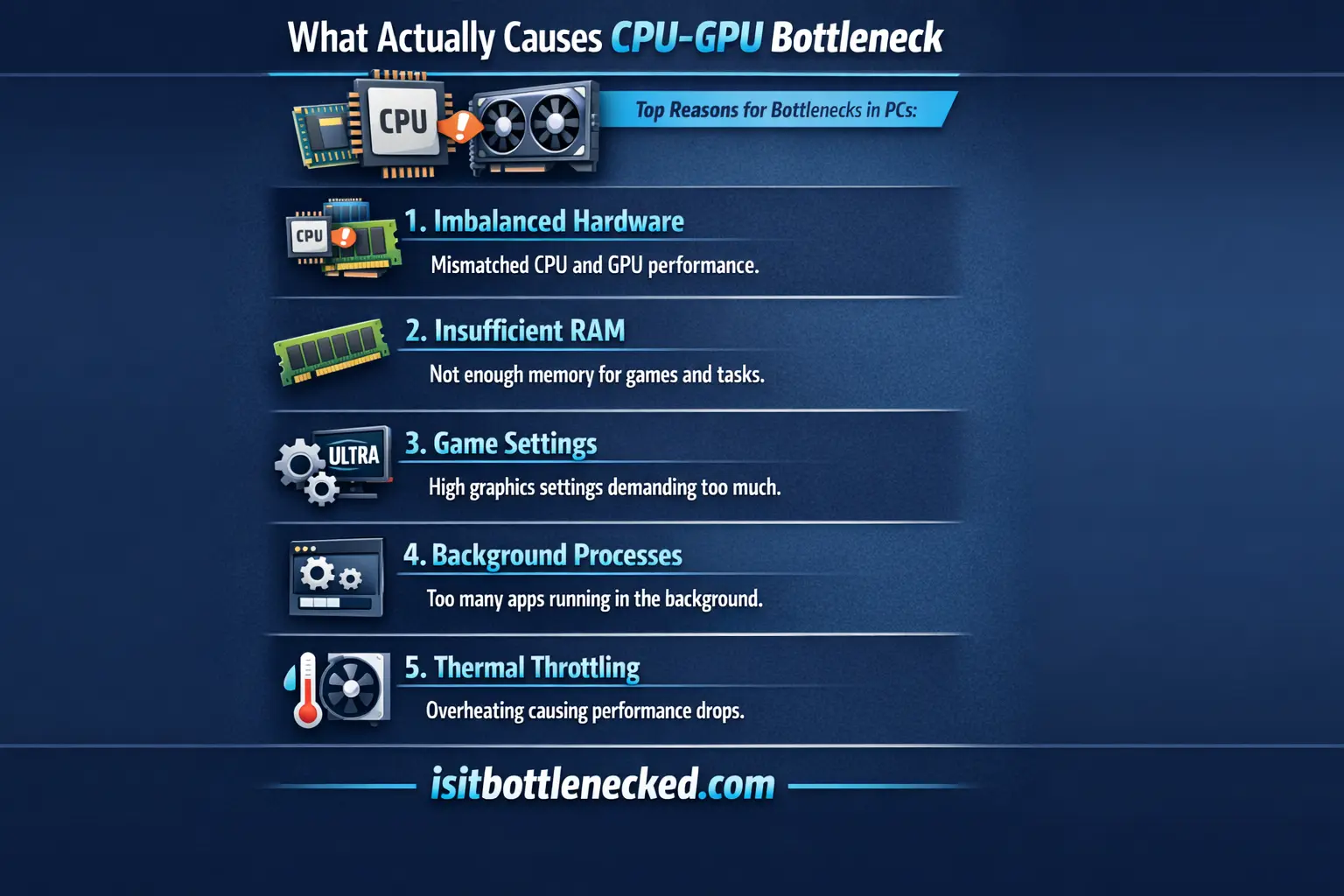
Every PC has some degree of bottleneck. That's not a flaw — it's just how component matching works in practice. The problem isn't having one. It's having a big one.
The CPU handles game logic, input, and the calculations that feed the GPU its instructions. When the processor can't keep up, the GPU doesn't magically fill the gap — it just waits. You end up with a fast graphics card doing less than it should because there's nothing ready for it to draw.
The Primary Reason Behind Stuttering
CPU usage hitting 100% while GPU stays below 70% is the smoking gun.
I have tested dozens of setups across message boards and gaming communities. The pattern is always the same. Weak CPU with a next-gen GPU creates a performance gap you cannot ignore.
Games optimized for 8+ cores will choke an older processor. DX11 titles are especially brutal because they lean heavily on single-core performance. Add high background tasks like Chrome or streaming software, and you are asking for trouble.
How To Identify CPU Bottleneck (The Real Way)
Forget guessing. You need data.
Open Windows Task Manager while playing powerful games. Look at hardware usage across all components. If your CPU is constantly above 90% while your GPU sits idle or unable to reach its peak, you have found your culprit.
MSI Afterburner provides real-time CPU monitoring and GPU monitoring. It is free and shows exactly what is happening during gameplay. HWMonitor tracks system usage stats and temperature so you know if overheating is causing lag.
Fixing CPU Bottleneck Without Hardware Change
Let's get practical. Not everyone can drop cash on a new CPU right away.
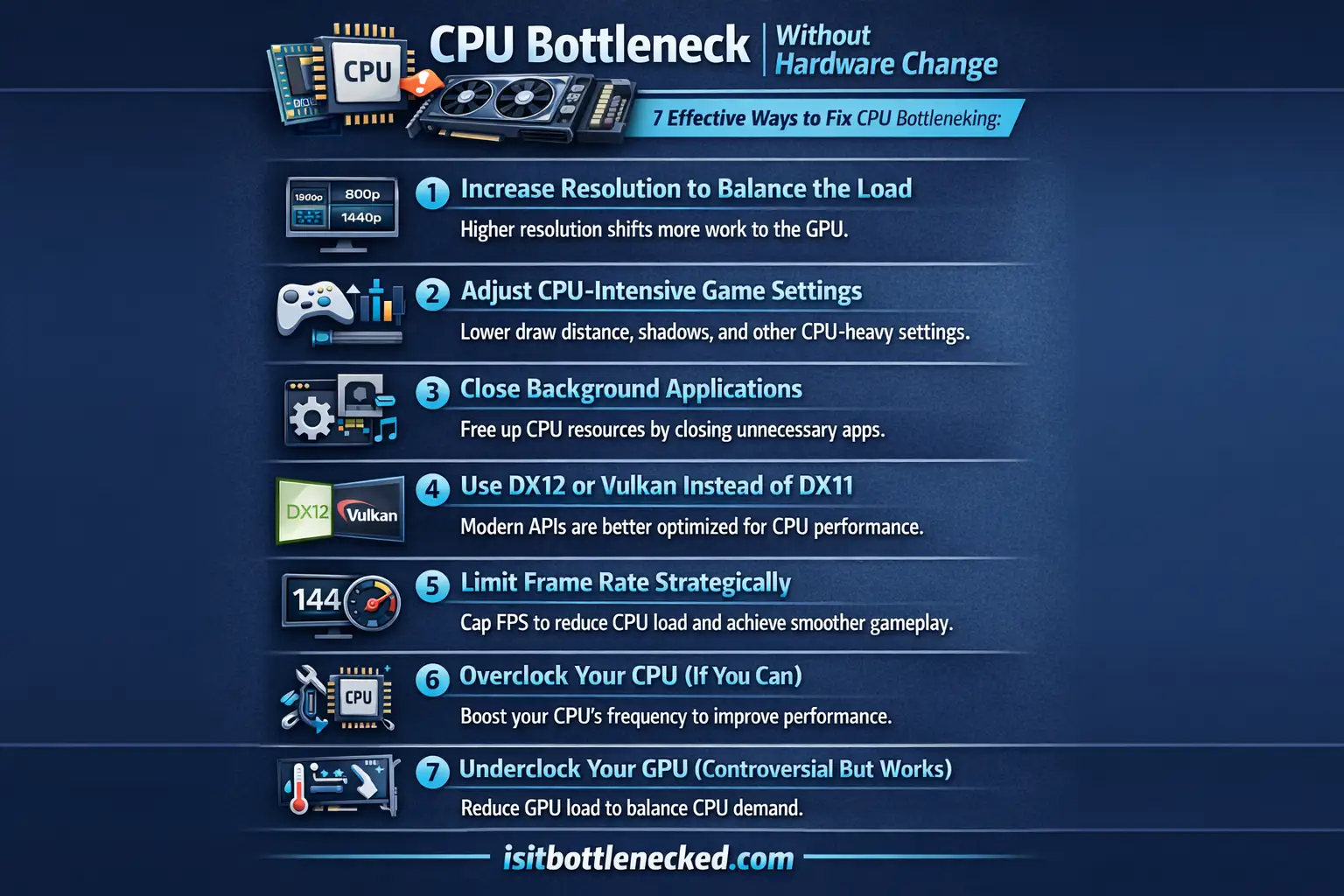
1. Increase Resolution to Balance the Load
This sounds backwards, but it works. Increasing resolution shifts more workload to your GPU.
I increased my resolution scale from 1080p to 1440p. My CPU usage dropped from 98% to 75%. The game looked better and stuttering disappeared.
Higher resolutions like 4K make your GPU work harder to render processed data. This gives your CPU breathing room to process data at a common speed. You will see fewer chances of experiencing bottlenecks.
Just make sure your display capabilities support it. Running beyond your monitor's native resolution is pointless.
2. Adjust CPU-Intensive Game Settings
Not all settings hit your CPU equally. These are the main culprits:
- Decrease draw distance
- Decrease crowd density and object density
- Lower population density
- Reduce physics calculations
- Cut vegetation density
These settings force your CPU to track more information. Turning them down frees up processing power fast.
Texture quality actually helps here. Increase texture quality because it is carried exclusively by GPU. More GPU load means less CPU bottleneck.
3. Close Background Applications
Background apps are silent killers. Chrome alone can eat 10-15% of your CPU power. Music streaming services and streaming software running in background takes even more.
Your CPU typically uses:
- 2-4% when idle
- 10-30% during standard gaming
- Up to 70% for graphics-intensive games
Open Task Manager before gaming. Close unused background apps. Every bit helps when you are chasing faster processing.
4. Use DX12 or Vulkan Instead of DX11
DX11 games hammer single CPU cores. DX12 and Vulkan spread the load across multiple cores.
If your game supports it, switch immediately. The difference in CPU usage is dramatic. Many broken Triple A games run better just by changing this one setting.
5. Limit Frame Rate Strategically
Here is where people get confused. A frame limiter can eliminate induced game stuttering.
If your CPU struggles to push high FPS at 144Hz or 240Hz, cap it. Lock your fps at 60 or 90. Your CPU will not be constantly trying to hit numbers it cannot reach.
Yes, your frame rate will be lowered. But stable 60 FPS beats stuttery 100 FPS every time.
6. Overclock Your CPU (If You Can)
Overclocking boosts performance when done right. AMD Ryzen processors all support it. Intel processors need the K designation (unlocked multiplier).
Monitor temperatures with Core Temp. Stay below 80°C to prevent damage. A good cooling system is non-negotiable here.
Even a small overclock can close the performance gap. Just do not push it if you do not know what you are doing.
7. Underclock Your GPU (Controversial But Works)
This is the option nobody talks about. If your GPU is way too powerful for your CPU, underclock it slightly.
It will not give the added benefit of better graphics. But it stops your GPU from demanding more than your CPU can deliver. Less stuttering means smoother gameplay overall.
When You Actually Need Hardware Upgrades
Sometimes software fixes are not enough. If you have tried everything and you are still bottlenecked, it is time to upgrade.
Upgrading RAM First
32GB of fast RAM (3200MHz or higher) makes a noticeable difference. Your CPU spends less time waiting for data.
Replacing Your CPU
If your CPU is the weak link, replacing it is the ultimate fix. Check CPU-GPU compatibility using pairing charts.
Modern setups that work harmoniously:
- Intel Core i5 processor with RTX 4050 graphics card
- Intel Core Ultra processors with NVIDIA GeForce RTX graphics
- AMD Ryzen processors with high-end GPUs
Avoid pairing an i3 CPU with an RTX 5090. That is like putting a lawn mower engine in a sports car.
Conclusion
Check CPU and GPU usage first. That alone will tell you whether you're chasing a real problem or a made-up one.
A lot of bottleneck complaints get solved by closing a browser, tweaking a crowd slider, or just letting the game finish shader compilation. Hardware upgrades are sometimes the answer, but they're rarely the first answer.
The monitoring tools aren't complicated once you've used them once. Pull up the numbers, see what's pegged, and go from there. Most of the time it's obvious.