3 Best Bottleneck Calculators for CPU and GPU Checks
A bottleneck calculator gives you a quick estimate of whether your CPU and GPU make sense together. If one part is much slower, the rest of the PC has to wait, and you feel it in games, editing apps, and everyday use.
That estimate isn't a perfect test. Resolution, RAM, storage, and workload can change the result, so the same parts may look balanced in one setup and off in another. A lot of top-five roundups pad the list, but the three below are the tools most people will find useful fast.
What a CPU and GPU bottleneck really means
A bottleneck happens when one part of your PC holds back the rest. In most builds, that means the CPU can't feed the GPU fast enough, or the GPU can't keep up with what the CPU is asking it to draw.
If your CPU usage is near 100% while GPU usage stays much lower, the processor is probably the limit. If the GPU is maxed out and the CPU still has headroom, the graphics card is the limit. Either way, you may see lower FPS, stutter, or uneven frame pacing.
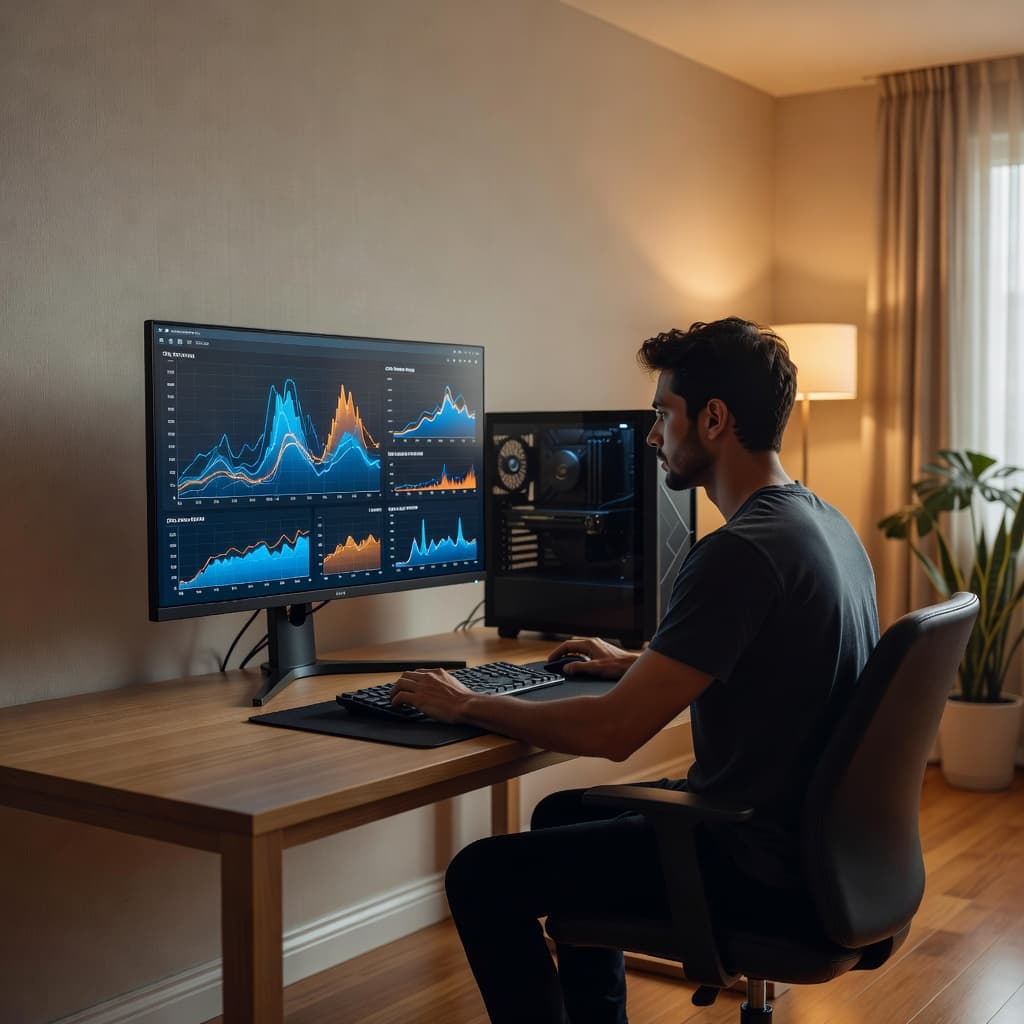
Still, CPU and GPU aren't the whole story. Low RAM, a slow or crowded drive, and heavy background apps can also make a system feel stuck. That's why no calculator can be perfect for every PC. Most of them compare your parts with preset rules, then turn that into a score or estimate.
The 3 best bottleneck calculators for checking CPU and GPU compatibility
Most people don't need a giant list. They need a tool that matches how much detail they want.
| Tool | Best for | Main limit |
|---|---|---|
| isitBOTTLENECKED | Most users | Still an estimate |
| PC Build | Quick percentage checks | Less setup detail |
| Will It Bottleneck | Full-system snapshots | More inputs take longer |
The best choice depends on whether you want speed, simplicity, or a wider system view.
isitBOTTLENECKED bottleneck calculator
isitBOTTLENECKED is the easiest and best pick for most readers because it goes beyond a basic CPU and GPU match. You can factor in resolution, RAM, storage type, and use case, which gives the result more context than a simple percentage alone.
That matters because a build can look fine for office work and still struggle in a high-refresh shooter. If you want a calculator that stays simple but doesn't ignore the rest of the setup, this is the best place to start.
PC Build bottleneck calculator
PC Build's calculator is the fast option. You choose your parts, get a quick score, and move on. That's useful when you're comparing upgrade ideas and want an answer in seconds.
The percentage is easy to understand, so beginners tend to like it. However, quick-score tools can flatten the details. A single number won't show how one game may lean hard on the CPU while another pushes the GPU harder.
WillItBottleneck bottleneck calculator
Will It Bottleneck fits users who want a wider look at the whole machine. It includes more fields for CPU, GPU, RAM, resolution, storage, and OS, so it can paint a fuller picture than a bare parts match.
Because it asks for more input, it works well when you're planning a full build or checking an older system before several upgrades. The trade-off is speed. If you only want a fast gaming estimate, it can feel like more work than you need.
When to trust a calculator, and when to double-check with benchmarks
A calculator is best for quick direction. It can tell you where a mismatch probably lives, but it can't predict every game, driver version, background task, or graphics setting on your exact PC.
So confirm the estimate with real tests. Check CPU and GPU usage while you play, and watch frame times instead of FPS alone. If you need help reading those patterns, this guide on how to fix hardware bottlenecks is a practical next step.
How to get the most accurate bottleneck result
Good inputs matter more than people think. A weak estimate often starts with the wrong settings.
Use your real resolution and workload
Always enter the resolution you use most. A build that looks CPU-limited at 1080p can look much more balanced at 1440p or 4K because the GPU has more work to do.
Workload matters too. Gaming, streaming, video editing, and office tasks stress hardware in different ways. As a result, the same CPU and GPU can look well matched in one use case and poorly matched in another.
Check CPU, GPU, RAM, and storage together
Don't stop at the processor and graphics card. RAM capacity, memory speed, storage type, cooling, and background apps can shift the result more than many people expect. A strong GPU paired with 8GB of RAM or a slow drive won't feel as smooth as a calculator suggests.
It's also smart to compare more than one estimate when the result looks odd. Conversations like this buildapc thread on bottleneck calculators show why score-only answers often spark debate. After that, use a tuning guide to optimize your PC gaming performance and confirm what's really slowing the system.
Final thoughts
The best bottleneck calculator depends on what you want most. isitBOTTLENECKED is the easiest all-around check, PC Build is great for speed, and Will It Bottleneck gives you more detail.
The key takeaway is balance. These tools can spot a likely CPU or GPU mismatch, but real benchmarks and live monitoring still matter before you spend money on an upgrade.