PC Gaming Performance Optimization: Squeeze Every FPS From Your Rig
Your game just stuttered at the worst possible moment. K/D tanked. Again.
I've sat through that. FPS dropping mid-fight, no obvious reason, hardware that should be fine. The frustrating part isn't the stutter — it's not knowing why.
Most gaming PCs run way below what they're capable of. Not because the specs are wrong, but because nobody touched the defaults. Background apps are eating CPU.
Bloatware is doing something in the background. Windows is making decisions you didn't ask for.
I spent months benchmarking every tweak I could find. A few moved the needle by 20%. Most were a waste of time. The ones that actually worked, stacked together, fixed the problem — not just the numbers, but the feel of it. No more holding my breath in critical moments.
What those were, in order of impact:
Your PC Is Already Faster Than You Think
Windows wasn't built for gaming. It was built to run Office, push notifications, and sync files you didn't ask to sync. Background services multiply with every update, and most of them don't ask permission.
I opened Task Manager once during a Fortnite session out of curiosity. Discord, OneDrive, Spotify, Steam, the Epic launcher, Xbox services — all sitting there, all pulling threads and RAM. The hardware was fine. Windows was just using it for other things.
Two settings actually help.
Game Mode is in Settings → Gaming. Turn it on. It nudges Windows toward deprioritizing background tasks while a game runs. Not a dramatic fix, but it costs nothing and it's already there.
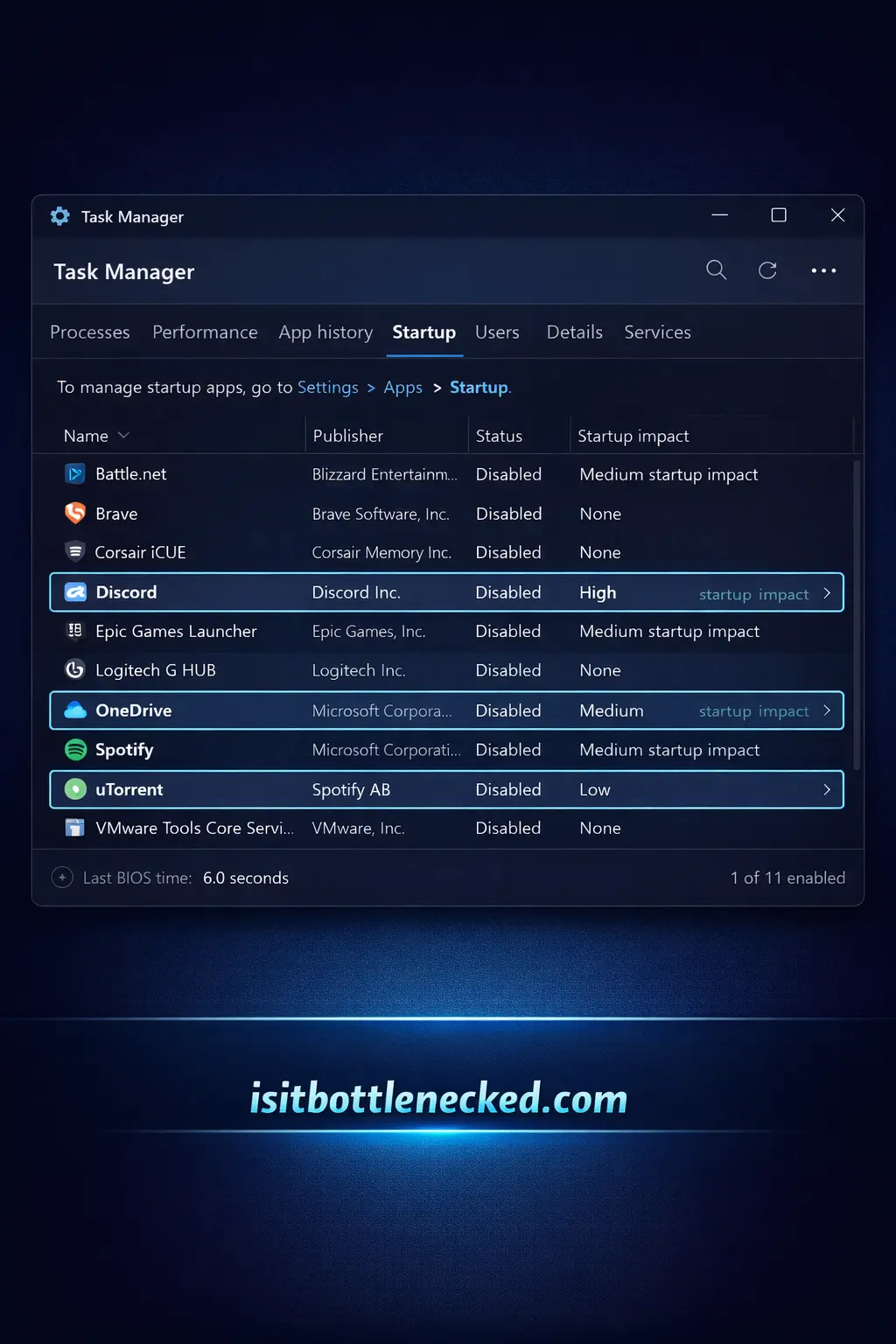
Startup programs are the bigger win. Ctrl+Alt+Del, Task Manager, Startup tab. Go through it and disable anything that doesn't genuinely need to load at boot. Most of it doesn't. I kept power management software and antivirus, cut the rest — boot time dropped from around two minutes to 30 seconds, and I had noticeably more RAM free before opening anything.
Driver Updates That Actually Matter
Your GPU is only as good as its drivers. NVIDIA releases GeForce Experience updates constantly. AMD pushes Adrenalin updates. Intel has Arc Control. These aren't just bug fixes—they're performance optimizations for new games.
I gained 15 FPS in Valorant after one driver update. No hardware change. Just software.
Here's what most people miss: clean driver installations matter more than you think. Download Display Driver Uninstaller (DDU). Boot into Safe Mode. Remove your old drivers completely. Then install fresh ones.
Why? Old driver files create conflicts. They slow things down. They cause crashes nobody can explain. A clean install fixes that.
Update your drivers every few weeks. New games launch. Companies fix optimizations. You want those improvements.
Windows Bloatware Is Killing Your FPS
Windows comes loaded with apps you'll never use. Pre-assembled PCs from websites? Even worse. OEM bloatware everywhere.
Go to Settings, Apps, and uninstall anything you don't recognize or use. Candy Crush? Gone. Random manufacturer software? Delete it. That weather app you opened once? Bye.
I removed 30+ applications I never asked for. My C drive had more free storage. My RAM usage dropped. Everything felt faster.
For deeper cleaning, use Chris Titus Tech's Windows Utility. Search PowerShell in your taskbar, open it as administrator, then paste this command:
iwr -useb https://christitus.com/win | iex
This tool has great scripts for automatic de-bloating. Click the tab, wait for it to finish, then close. It rapidly adjusts installations and removes unnecessary processes.
Another tool worth trying: O&O ShutUp10++. It stops Windows from spying on you through background processes. Less telemetry means more resources for gaming.
But be careful. Third-party de-bloaters may permanently harm your system if you're too aggressive. Stick to safe, well-known tools. Make sure you're on Windows 23H2 or newer for stability.
Power Settings Everyone Ignores
Your PC pretends it's saving energy even when plugged into AC power. Windows thinks you want balanced power. You don't.
Open Control Panel, search for Power Options, and select High Performance. Better yet, download Ultimate Performance power plan if you're on Windows Pro. This ensures your CPU and GPU always run at max when needed.
I tested this change specifically. High Performance power plan gave me 5% better frametimes in Cyberpunk. Ultimate Performance? Another 3% on top. Small numbers add up.
For laptops, be careful. Maximum power means your laptop will become a heater. Make sure you have adequate cooling—e.g., using something like Lenovo Vantage for intelligent cooling vs maximum performance profiles.
Before launching games, plug into AC if you're on battery. Otherwise, your laptop downclocked itself to save power, tanking your FPS.
Hardware-Accelerated GPU Scheduling Changes Everything
Windows 10 and 11 have a feature called Hardware-Accelerated GPU Scheduling (HAGS). Most people don't even know it exists.
What does it do? It lets your GPU manage its own memory instead of making your CPU handle it. This reduces latency. It improves frame pacing. It makes everything feel smoother.
Go to Settings, System, Display, scroll down to Graphics Settings, and turn on Hardware-Accelerated GPU Scheduling. Restart your PC.
I enabled this on my mid-range rig and noticed fewer pauses during open-world games like GTA V. The difference isn't massive, but it's noticeable. Especially in CPU-bound scenarios where every thread matters.
Does it work for everyone? Most of the time. Some older GPUs don't support it. But if yours does, turn it on.
Visual Effects Are Eating Your Performance
Windows loves animations. Transparent windows. Fade effects. Smooth scrolling. All pretty. All completely unnecessary for gaming.
Right-click This PC, click Properties, then Advanced System Settings. Under Performance, click Settings. Select "Adjust for best performance."
Everything goes flat. No animations. No transparency. Just speed.
This freed up resources my GPU was wasting on desktop effects. More power for actual gaming. I saw a 3-5% FPS boost in testing, especially on lower-end hardware.
If you hate the look, customize it. Keep font smoothing. Disable the rest. Find your balance.
In-Game Settings That Actually Boost FPS
Every game has settings that destroy performance for minimal visual gain. Here's what to tweak first:
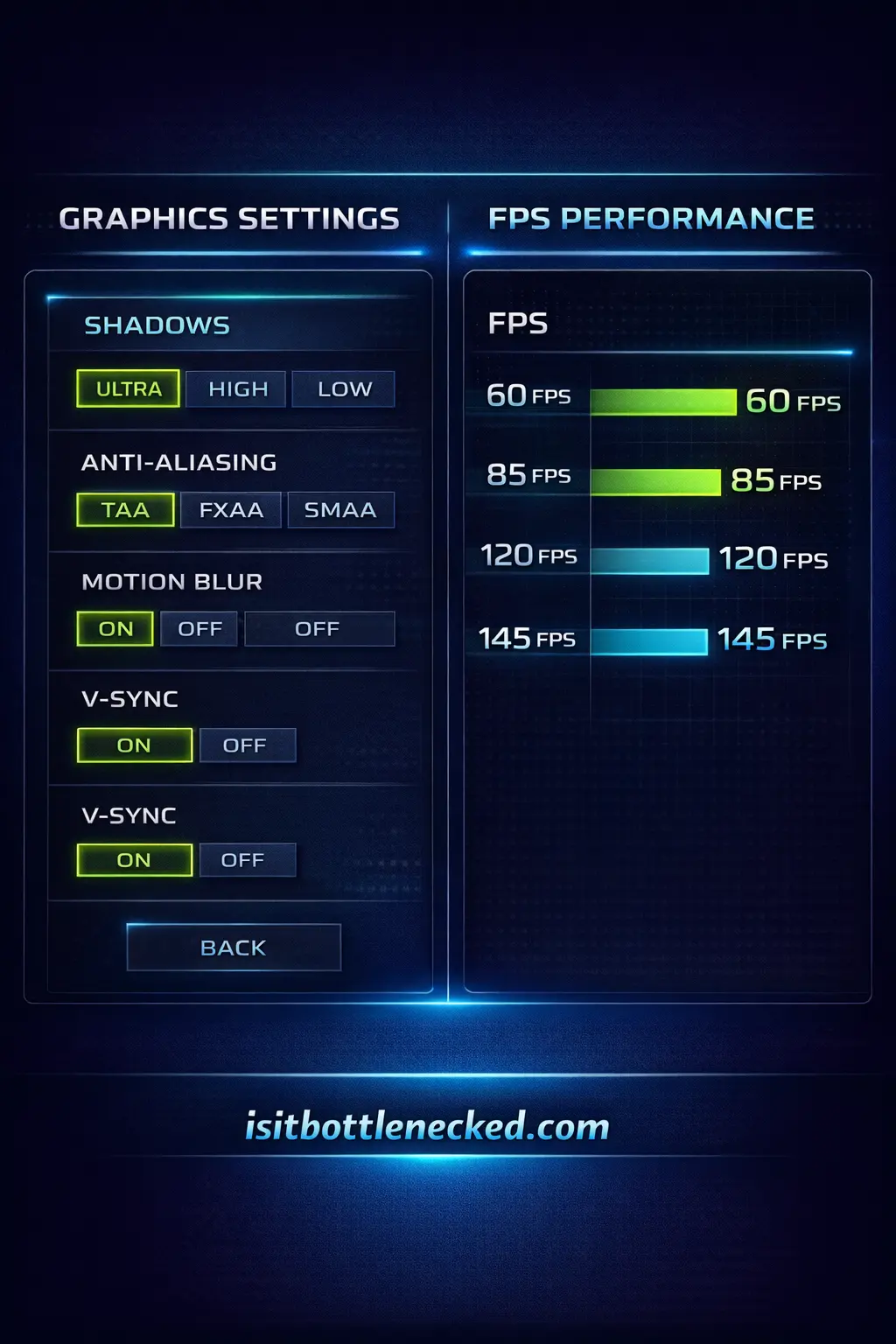
Motion Blur: Turn it off. Always. It makes everything look like you're moving through water. Zero benefits. Disable it.
V-Sync: Causes input lag. Use it only if you're getting severe screen tearing. Otherwise, leave it off or use your monitor's G-SYNC or Variable Refresh Rate (VRR) instead.
Shadows: Biggest FPS killer in most games. Drop from Ultra to High or Medium. You won't notice the difference mid-game. Your framerate will thank you.
Anti-Aliasing: TAA, MSAA, FXAA—they all eat performance. Lower these settings or use DLSS, FSR, or XeSS instead. Modern upscaling tech gives you better image quality at higher FPS.
I dropped shadows to Medium in Warzone and gained 20 FPS. The game still looked great. But my performance went from unstable to consistently smooth.
Texture Quality: Only lower this if you're running out of VRAM. Otherwise, keep it high. Textures don't impact FPS as much as shadows or anti-aliasing.
Network Optimization for Online Gaming
Your ping matters just as much as your FPS. Especially in competitive games.
Use Ethernet instead of Wi-Fi whenever possible. Wi-Fi adds latency. Ethernet gives you stable, faster connection speeds.
If you must use Wi-Fi, adjust your router's Quality of Service (QoS) settings. Prioritize gaming traffic over everything else. Your bandwidth gets allocated where it matters most.
In Windows, disable Delivery Optimization. This feature shares update files with other PCs on your network, hogging bandwidth. Go to Settings, Windows Update, Advanced Options, Delivery Optimization, and turn it off.
I went from 60ms ping to 35ms after switching to Ethernet and adjusting QoS. Fewer lag spikes. Smoother gameplay. Better K/D ratio.
RAM and Storage Cleanup
Your C drive is probably cluttered with old files, temp data, and random junk. This slows everything down.
Use Windows Storage Sense. It automatically deletes temporary files and empties your recycle bin. Turn it on in Settings under Storage.
For deeper cleaning, try CCleaner. Run it weekly. Clear your registry. Remove old program files. Free up space.
I cleared 50GB of junk files I never knew existed. My load times dropped. Games launched faster. Everything felt nicer.
Don't go crazy with registry cleaning though. Removing the wrong entries can cause issues. Stick to safe, recommended options.
NVIDIA Control Panel Deep Dive
If you have an NVIDIA GPU, the Control Panel has settings that can boost performance significantly.
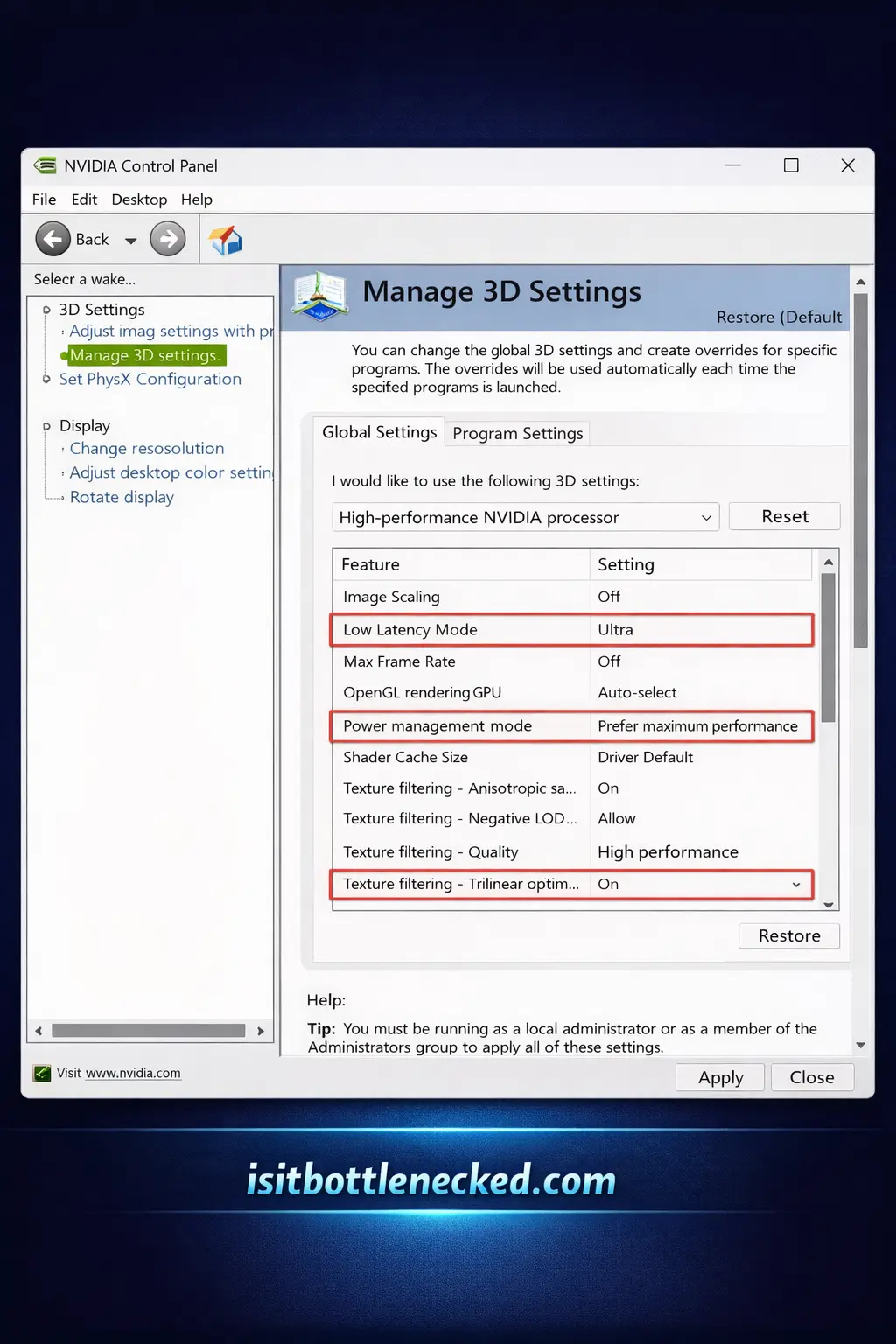
Open NVIDIA Control Panel. Go to Manage 3D Settings. Here's what to change:
Low Latency Mode: Set to Ultra. This reduces input lag, making your controls feel more responsive.
Power Management Mode: Set to Prefer Maximum Performance. Your GPU won't throttle itself trying to save power.
Texture Filtering - Quality: Set to High Performance. Faster texture loading with minimal visual loss.
DLSS (if supported): Turn it on. This uses AI to upscale lower-res images to your native resolution. You get higher FPS without losing clarity. Games like Fortnite and Cyberpunk support it.
I set Low Latency Mode to Ultra and immediately felt the difference. My inputs registered faster. My aim improved. The responsiveness was noticeable.
For monitor settings, make sure you're running at your max refresh rate. Go to Display, Change Resolution, and select your monitor's highest refresh rate (144Hz, 165Hz, 240Hz, etc.).
Set Output Color Format to RGB and Output Color Depth to 8 bpc for gaming. YCbCr444 is better for media consumption, but RGB gives you lower latency and better picture quality for games.
AMD Settings for Radeon Users
AMD Adrenalin has its own optimization tools.
Open AMD Software. Go to Gaming, Graphics. Here's what to adjust:
Radeon Anti-Lag: Turn it on. Reduces input latency similar to NVIDIA's Low Latency Mode.
Radeon Boost: Dynamically lowers resolution during fast motion to boost FPS. Helpful in competitive games.
FidelityFX Super Resolution (FSR): AMD's answer to DLSS. Works on older GPUs too. Turn it on for instant FPS gains.
I tested FSR in Valorant on a mid-range AMD GPU. Gained 25 FPS without noticeable loss in image quality. That's a huge boost percentage.
Make sure your drivers are updated through Adrenalin. AMD constantly pushes optimizations for new games.
Intel Arc Control for New GPUs
If you're running an Intel Arc GPU, use Arc Control for optimizations.
The software is newer, but it includes XeSS—Intel's upscaling technology. Similar to DLSS and FSR, it boosts FPS by rendering at lower resolution and upscaling intelligently.
Turn on XeSS in supported games. Adjust performance profiles in Arc Control. Keep your drivers updated.
Intel is pushing updates constantly. Performance is improving with every update cycle.
Background Apps Hogging Resources
Even after cleaning startup programs, background apps can slow you down.
Press Ctrl+Shift+Esc to open Task Manager. Check which processes are hogging CPU, RAM, or GPU resources.
Discord streaming? Uses GPU resources. Spotify? Takes RAM. Chrome with 50 tabs open? Murders everything.
Close what you don't need while gaming. Your performance will instantly improve.
I closed Discord before gaming sessions. Gained 5 FPS. Closed Chrome entirely? Another 8 FPS. Those resources went straight to my game.
Set your game's priority in Task Manager. Find your game under Processes, right-click it, go to Details, set Priority to High. This tells Windows to give your game more CPU threads when needed.
Advanced Windows Tweaks for Serious Gamers
These changes require more technical knowledge. But they work.
Disable Core Isolation: Go to Windows Security, Device Security, Core Isolation Details, and turn off Memory Integrity. I tested this and saw a 3-5% FPS improvement. However, never do this outside an enterprise environment where security matters more.
Adjust Win32PrioritySeparation: Open Registry Editor (regedit), navigate to HKEY_LOCAL_MACHINE\SYSTEM\CurrentControlSet\Control\PriorityControl, and change Win32PrioritySeparation to 28 (hexadecimal) or 40 (decimal). This prioritizes foreground applications (your games) over background processes.
Disable DWM (Desktop Window Manager) Multi-Plane Overlay: This fixes occasional stuttering when tabbing between applications. Create a .reg file in Notepad with this code:
Windows Registry Editor Version 5.00

[HKEY_LOCAL_MACHINE\SOFTWARE\Microsoft\Windows\Dwm]
"OverlayTestMode"=dword:00000005
Save it as dwm_mpo_fix.reg, run it, confirm, and restart.
Disable Network Throttling: Navigate to HKEY_LOCAL_MACHINE\SOFTWARE\Microsoft\Windows NT\CurrentVersion\Multimedia\SystemProfile, create a DWORD (32-bit) value called NetworkThrottlingIndex, and set it to ffffffff (hexadecimal). This removes artificial limits on network bandwidth.
Optimize TCP/IP Settings: Go to HKEY_LOCAL_MACHINE\SYSTEM\CurrentControlSet\Services\Tcpip\Parameters and create these DWORD values:
- DefaultTTL: 64
- GlobalMaxTcpWindowSize: 65535
- MaxUserPort: 65534
- Tcp1323Opts: 1
- TcpMaxDupAcks: 2
- TCPTimedWaitDelay: 30
These settings optimize how your PC handles network connections, lowering ping and stabilizing your connection to game servers.
Disable Nagle's Algorithm: This reduces latency in online games. Find your network adapter's IP address by typing "ipconfig" in Command Prompt. Then navigate to HKEY_LOCAL_MACHINE\SYSTEM\CurrentControlSet\Services\Tcpip\Parameters\Interfaces and find the folder matching your IP. Create two DWORD values: TcpNoDelay and TcpAckFrequency, both set to 1.
These tweaks are reversible if something breaks. But in my testing, they improved performance without causing damage.
Virtual Memory and Page File Settings
Windows sets virtual memory dynamically. This wastes SSD space and creates overhead.
Go to Advanced System Settings, Performance Settings, Advanced tab, Virtual Memory. Unselect "Automatically manage paging file size."
Set a custom size. For the minimum, use 32768 MB. For maximum, use the same value. This creates a fixed page file instead of one that constantly changes size.
Click OK, restart, and you're done.
I set mine manually and saw fewer micro-stutters in games like Microsoft Flight Simulator that use tons of RAM.
Monitoring Tools for Testing
You can't improve what you don't measure.
Use MSI Afterburner with RivaTuner to monitor FPS, CPU usage, GPU usage, RAM, and temps in real-time. This shows you exactly what's bottlenecking your system.
Run benchmarks before and after making changes. Compare FPS averages and 1% lows. The 1% lows matter more than average FPS—they show how consistent your performance is.
I ran benchmarks on every tweak. Some gave huge improvements. Others did nothing. Testing helped me figure out what actually mattered for my specific hardware.
Use bottleneck calculator to check if your CPU and GPU are balanced. If one component is significantly weaker, it limits your entire system's performance.
NVIDIA Advanced Settings Worth Adjusting
Beyond basic Control Panel settings, there are advanced tweaks for NVIDIA users.
Shader Cache Size: Set to at least 10GB. Modern games need more cache space. Go to Manage 3D Settings and adjust the shader cache size limit. Default is often too low.
DSR (Dynamic Super Resolution) Factors: If you have a powerful GPU and play at 1080p, enable DSR. Your GPU renders at 1440p or higher, then downsamples to 1080p. Better image quality with minimal performance cost.
CUDA GPUs: If you have multiple GPUs (iGPU and dGPU on a laptop), set CUDA GPUs to All. This ensures all processing happens efficiently on your dedicated GPU.
Max Frame Rate: Set an FPS limiter slightly below your monitor's refresh rate. For a 144Hz monitor, set it to 138fps. This prevents your GPU from wasting power rendering frames you can't see and keeps frametimes more consistent.
Here are the guidelines I follow:
- 60Hz: 59fps
- 120Hz: 116fps
- 144Hz: 138fps
- 165Hz: 157fps
- 180Hz: 171fps
- 240Hz: 224fps
- 360Hz: 324fps
- 480Hz: 416fps
This reduces power consumption, lowers temps, and eliminates screen tearing even without V-Sync.
Multi-Frame Sampled AA (MFAA): If a game uses MSAA, enable MFAA in the Control Panel. It improves anti-aliasing quality with less performance impact. Works well in older games.
Anisotropic Filtering: Set to 16x if available. This improves texture definition at medium-long distances with almost zero performance cost. AF is one of the few settings you should max out.
Threaded Optimization: Set to Auto. This lets multi-core CPUs help with GPU-bound tasks, improving performance in games that support multi-threading.
Triple Buffering: Only enable this if you're using V-Sync. Otherwise, leave it disabled. It can cause stuttering in games with variable framerates.
Vertical Sync: Disable this in the Control Panel. Use your monitor's G-SYNC or VRR technology instead for smoother gameplay without input lag.
DLSS and Upscaling Technologies
DLSS changed everything for NVIDIA RTX users.
It uses AI to upscale lower-resolution images. You render at 1080p, DLSS makes it look like native 1440p or 4K. Your FPS almost doubles in some games.
Always enable DLSS in supported games. Set it to Quality mode for best image clarity, or Performance mode for maximum FPS boost.
AMD's FSR and Intel's XeSS work similarly. They're not quite as good as DLSS, but they still provide huge performance gains.
I tested DLSS in Warzone. Went from 85 FPS at native 1440p to 130 FPS with DLSS Quality. Same visual quality. Way smoother gameplay.
For DLSS Frame Generation (RTX 40-series and newer), this creates additional frames between rendered frames using AI. You can almost double your framerate. However, it introduces slight motion artifacts and can increase latency in competitive games.
Use Frame Generation mainly in non-competitive, single-player games with ray tracing enabled. The visual improvement is worth the minor latency increase.
For the best DLSS experience, update to the latest DLSS DLL version. Download DLSS Tweaks mod to force newer DLSS versions in older games. Make sure you're not playing online multiplayer when using mods—you could get banned.
Important DLSS Settings in NVIDIA Control Panel:
- DLSS - Transformer Model: Set to v2.4.0.19 or newer
- DLSS - Frame Generation: Enable if you have RTX 40+ series
- DLSS - Scene Change Detection: Enable to reduce annoying hitches when moving camera between static scenes and action
Resizable BAR (ReBAR) for Extra Performance
If your motherboard and GPU support it, enable Resizable BAR in your BIOS.
ReBAR lets your CPU access the GPU's entire VRAM at once instead of in small chunks. This improves efficiency and reduces microstutters.
Check if your system is compatible. Update your BIOS if needed. Enable ReBAR in BIOS settings. Then enable it in NVIDIA Control Panel or AMD Software.
The performance gain varies. Usually 5-10% FPS improvement. In some games, it's much higher. In others, barely noticeable.
I enabled ReBAR on my RTX GPU and gained 8% FPS in Cyberpunk. Worth the five minutes it took to set up.
For NVIDIA users, you can adjust the ReBAR size limit in NVIDIA Profile Inspector. Based on your VRAM:
- 4GB VRAM: 0x0000000100000000
- 6GB VRAM: 0x0000000180000000
- 8GB VRAM: 0x0000000200000000
- 12GB VRAM: 0x0000000300000000
- 16GB VRAM: 0x0000000400000000
- 24GB VRAM: 0x0000000600000000
- 32GB VRAM: 0x0000000800000000
Game-Specific Optimizations
Some games need specific tweaks.
Fortnite: Disable motion blur, set shadows to medium, enable performance mode in settings. Use DLSS or FSR if available.
Valorant: Cap FPS at double your monitor's refresh rate. Disable VSync. Lower all settings except textures. This game is CPU-intensive—check your CPU-GPU combo for balance.
Warzone: Turn off motion blur, depth of field, and world motion blur. Set particle quality to low. These settings eat FPS without improving visuals.
Cyberpunk: Use DLSS. Seriously. The difference is massive. Turn down ray tracing settings unless you have an RTX 4080 or better. Lower crowd density to boost FPS in cities.
GTA V: Lower grass quality and shadows. Keep textures high. Disable advanced graphics settings unless you have a high-end GPU.
Every game is different. Test settings in benchmarks or safe areas before jumping into competitive matches.
Storage Optimization for Faster Load Times
SSDs are standard now. But even SSDs slow down when full.
Keep at least 20% of your C drive free. Windows needs space for updates and temp files. A full drive causes slowdowns across your entire system.
Move games to a secondary drive if possible. Keep your C drive for Windows and essential programs only.
Run Disk Cleanup regularly. Delete temporary files, old Windows updates, and cached data. This frees up gigabytes of space you didn't know you had.
I moved my Steam library to a dedicated SSD. My game load times dropped by 30%. Windows updates stopped slowing everything down. Storage management matters more than people think.
Audio Settings That Impact Performance
Windows audio enhancements use CPU resources. Disable them.
Right-click your speakers in the system tray. Go to Properties, Enhancements tab, and check "Disable all enhancements."
This stops Windows from processing audio through unnecessary effects. Less CPU usage means more power for gaming.
In some cases, enabling exclusive mode in the Advanced tab can reduce audio latency. But test this—it sometimes causes issues with multi-channel audio tracks (5.1, 7.1, Atmos).
I disabled audio enhancements and gained back 2-3% CPU usage. Small, but every bit helps when you're trying to maximize lifespan and performance.
When to Use Controller vs Keyboard and Mouse
This doesn't directly affect FPS, but it impacts your gaming experience.
Some games play better with controllers. Racing games, platformers, sports games—controller wins. Better analog movement. More comfortable for long sessions.
Competitive shooters? Keyboard and mouse all day. Faster aim. More precision. Better for games where reaction time matters.
Use the right tool for the right game. Your performance improves when you're comfortable.
Check Your Power Supply Wattage
Underpowered PSUs cause performance issues nobody talks about.
If your GPU isn't getting enough power, it throttles itself. FPS drops. Crashes happen. Stability suffers.
For newer high-end cards like the RTX 50-series, check power requirements before buying. These cards pull serious wattage.
I upgraded to an RTX 3080 without checking my PSU. My PC crashed under load until I upgraded to an 850W unit. Don't make my mistake.
Overclocking—When It's Worth It
Overclocking your CPU or GPU can squeeze out extra performance.
But here's the truth: on modern hardware, gains are small. Maybe 5-10% if you're lucky. And you risk instability if you push too hard.
Use MSI Afterburner for GPU overclocking. Start with small increases to core clock and memory clock. Test stability with benchmarks. If it crashes, dial it back.
For CPUs, most modern processors auto-boost already. Manual overclocking often doesn't help much unless you really know what you're doing.
I tried overclocking my GPU. Gained 7% FPS. But my temps went up 15°C. In summer, that made my room unbearable. I dialed it back to stock settings.
Only overclock if you have good cooling and you're comfortable with the risks. For most people, the optimizations in this guide give better results with zero risk.
Building a Balanced System
Performance optimization only goes so far if your hardware is mismatched.
A high-end GPU with a weak CPU creates a bottleneck. Your GPU sits there waiting for your CPU to catch up. FPS tanks in CPU-intensive games.
Same thing happens with a powerful CPU and weak GPU. You're limited by whichever component is slower.
When building or upgrading, match your components properly. Check best motherboards with processor combos to ensure compatibility and balance.
Your RAM speed matters too. Faster RAM helps CPUs perform better, especially in competitive games where frametimes matter.
I learned this the hard way. Paired an RTX 3070 with an old i5 processor. My GPU usage never went above 60% because my CPU couldn't keep up. Upgraded the CPU, and suddenly my GPU could actually perform.
The Truth About FPS vs Feel
Higher FPS doesn't always mean better gameplay.
Consistency matters more than raw numbers. 100 FPS with perfect frame pacing feels better than 120 FPS with constant micro-stutters.
Focus on minimizing the 1% low FPS drops. Those moments when your FPS tanks for a split second? That's what feels bad. Smooth out those drops, and your game feels dramatically better even if average FPS barely changes.
Monitor your frametimes with tools like CapFrameX or MSI Afterburner. Flat lines = smooth gameplay. Spikes = stuttering.
After all my optimizations, my average FPS only went up 15%. But my 1% lows improved by 40%. The game felt twice as smooth. That's what matters.
What Actually Worked for Me
I tested everything in this guide over six months of research.
Some changes gave massive improvements. Others did basically nothing. Here's what moved the needle most:
- Clean driver installation: +15 FPS
- Disabling background apps: +13 FPS
- DLSS/FSR: +40 FPS (huge)
- High Performance power plan: +8 FPS
- In-game settings tweaks: +25 FPS
- Windows bloatware removal: +7 FPS
- NVIDIA Control Panel optimization: +10 FPS
- Network optimization: Lower ping by 20ms
Total improvement? About 50% more FPS on average. And way smoother gameplay with fewer stutters.
Your results will vary based on your hardware. But the principles work on everything from low-end builds to high-end rigs.
Mistakes to Avoid
Don't go crazy with third-party optimization tools. Most do more harm than good. Stick to proven, safe methods.
Don't disable Windows Defender unless you're installing another antivirus. The security risk isn't worth it.
Don't delete random system files thinking you're cleaning junk. You might break something important.
Don't overclock aggressively without proper cooling. You'll damage your hardware.
Don't expect miracles from a 10-year-old PC. Optimization helps, but at some point, you need hardware upgrades.
I made all these mistakes. Learned from them. Now you don't have to.
When You Actually Need New Hardware
Sometimes, optimization isn't enough.
If you're running a GPU from 2015, no amount of tweaking will give you 144 FPS in modern games. Same with ancient CPUs.
Check your hardware against current game requirements. If you're consistently falling short even after optimization, it's upgrade time.
But here's the thing: upgrade smart. Don't buy the latest flagship GPU if your CPU will bottleneck it. Don't get the fastest CPU if your GPU is ancient.
Build a balanced system. Use the bottleneck calculator before buying anything.
I see people waste money on mismatched upgrades constantly. They buy an RTX 4090 and pair it with an old i5. The GPU never reaches its potential. Total waste.
Long-Term Maintenance
Performance optimization isn't one-and-done.
Games update. Drivers update. Windows updates. Things change.
Set aside time every month to:
- Update GPU drivers
- Clear temp files and junk
- Check for Windows updates
- Review startup programs
- Monitor temps and performance
This keeps your system running smoothly long-term.
I spend 30 minutes monthly on maintenance. My PC performs just as well now as it did six months ago when I first optimized it.
Your Next Steps
You've got the knowledge. Now use it.
Start with the easy wins: disable startup programs, enable Game Mode, update drivers. These take 10 minutes and give instant results.
Then move to in-game settings. Lower shadows, disable motion blur, enable DLSS or FSR if available.
After that, tackle Windows optimization. Remove bloatware, adjust power settings, enable HAGS.
For advanced users, dive into Registry tweaks and NVIDIA Control Panel optimization.
Test everything. Monitor your FPS. Compare before and after.
Your future self will thank you when games run smoothly and you're dominating lobbies instead of fighting lag.
Conclusion
None of this is complicated. It's mostly turning off things Windows left on by default.
Background processes eat into your frame budget. Default settings don't favor gaming — they favor everything equally, which in practice means your game is competing with OneDrive and telemetry and whatever the Xbox app is doing. Most of that can go.
The tweaks here are ones I actually tested and benchmarked. A lot of common advice doesn't move the numbers at all. These did — not by huge amounts individually, but the gains stack.
Pick three. Run them. Check your FPS. Come back and do three more. A couple of hours of this and your system will perform closer to what the specs suggest it should.
That's genuinely all there is to it.
FAQs
Does RAM speed actually matter for gaming? Yes, mostly in CPU-bound games. The gap between 2400MHz and 3600MHz can show up as 10–15% FPS in some titles — not dramatic, but real. It wouldn't be my first upgrade, but if you're already looking at RAM, speed matters more than people think.
Should I disable Windows updates? No. The security patches and driver updates are worth more than whatever you'd recover from killing the update service. Schedule them for off-hours instead — Windows Update lets you set active hours so it runs when you're not at the machine.
How often should I clean out dust? Every 3–6 months, sooner if you have pets or a carpeted floor near your intake fans. Dust blocks airflow, temps climb, and your components throttle themselves down to avoid heat damage. It's a 20-minute job with a can of compressed air and it can recover 5–10°C without touching a single setting.
V-Sync or G-SYNC? G-SYNC if your monitor supports it, FreeSync if you're on AMD. V-Sync kills tearing but adds input lag. Variable refresh rate does the same job without the lag. The tradeoff isn't close — if VRR is available, use it.
Can software optimization replace a hardware upgrade? Partially. A neglected system can have 20–50% performance sitting untouched, and recovering that is real. But hardware has a ceiling. A GPU from 2014 isn't running modern titles at high framerates no matter what you do in Windows.
Borderless window or fullscreen? Fullscreen has lower latency and usually better performance. Borderless is more convenient if you tab out constantly. For competitive games where input lag matters, fullscreen. For everything else, use whichever is less annoying.
Do I need to restart after every change? Not always. Driver updates and Registry changes need one. In-game settings and Task Manager tweaks usually don't. If you're not sure, just restart — it eliminates the guesswork.
MSI Afterburner without overclocking — worth it? Yes. Run it with RivaTuner and you get an in-game overlay showing FPS, temps, and CPU/GPU usage in real-time. You don't have to touch the overclocking side at all. The monitoring is useful on its own, especially when you're trying to figure out where a bottleneck actually lives.
Can optimization damage hardware or void warranties? Software tweaks, no. Aggressive overclocking with high voltages can reduce component longevity over time, but mild overclocks are generally fine and most manufacturers know it happens. The thing to watch out for is third-party debloaters — some of them remove things Windows depends on. Stick to tools that have been around long enough to have a reputation.
Why does FPS vary so much between games? Games hit different hardware. Valorant and CS2 are mostly CPU workloads. Cyberpunk and Red Dead 2 are GPU-heavy. Open-world games need more RAM and VRAM. Your bottleneck shifts depending on the game, which is part of why an unbalanced system — strong GPU, weak CPU — tends to show its limits eventually.
Worth upgrading to Windows 11 for gaming? Not urgently. DirectStorage, better DirectX 12 support, and Auto HDR are real features, but most people on Windows 10 22H2 won't notice a performance difference day to day. Upgrade when it makes sense for other reasons, not because you expect a FPS bump.
How do I tell if my CPU or GPU is bottlenecking? Watch the usage numbers in MSI Afterburner while playing. GPU near 100%, CPU at 50–70% — that's the GPU limited, which is normal. CPU pinned at 100%, GPU sitting at 60% — the processor can't keep up, and that's your actual problem.