How to Optimize Your Gaming PC for High Refresh Rates
A 144 Hz, 165 Hz, or 240 Hz monitor can look amazing, but it won't fix a sluggish setup by itself. If your PC can't feed the display enough frames, high refresh gaming turns into a mix of stutter, blur, and extra input lag.
The good news is that you don't need a new build to get better results. If you want smoother motion and cleaner frame pacing, your monitor settings, Windows options, drivers, cables, and game settings all need to line up. Start with the basics, then tune the parts that move the needle.
Start with the right display settings before changing the PC
Many people chase FPS first and miss the easy win: the monitor isn't always running at its highest refresh rate.
Set Windows to your monitor's full refresh rate
In Windows 11, open Settings, System, Display, then Advanced display. Check the refresh rate there, because Windows may default to 60 Hz or another lower value after a driver update, a fresh install, or a cable swap.
If the system sends 60 frames per second to a 165 Hz panel, the monitor can't show smooth high-refresh motion. That simple mismatch is why a fast display can still feel flat.
If Windows is set wrong, your monitor will behave like a slower one, no matter what the box says.
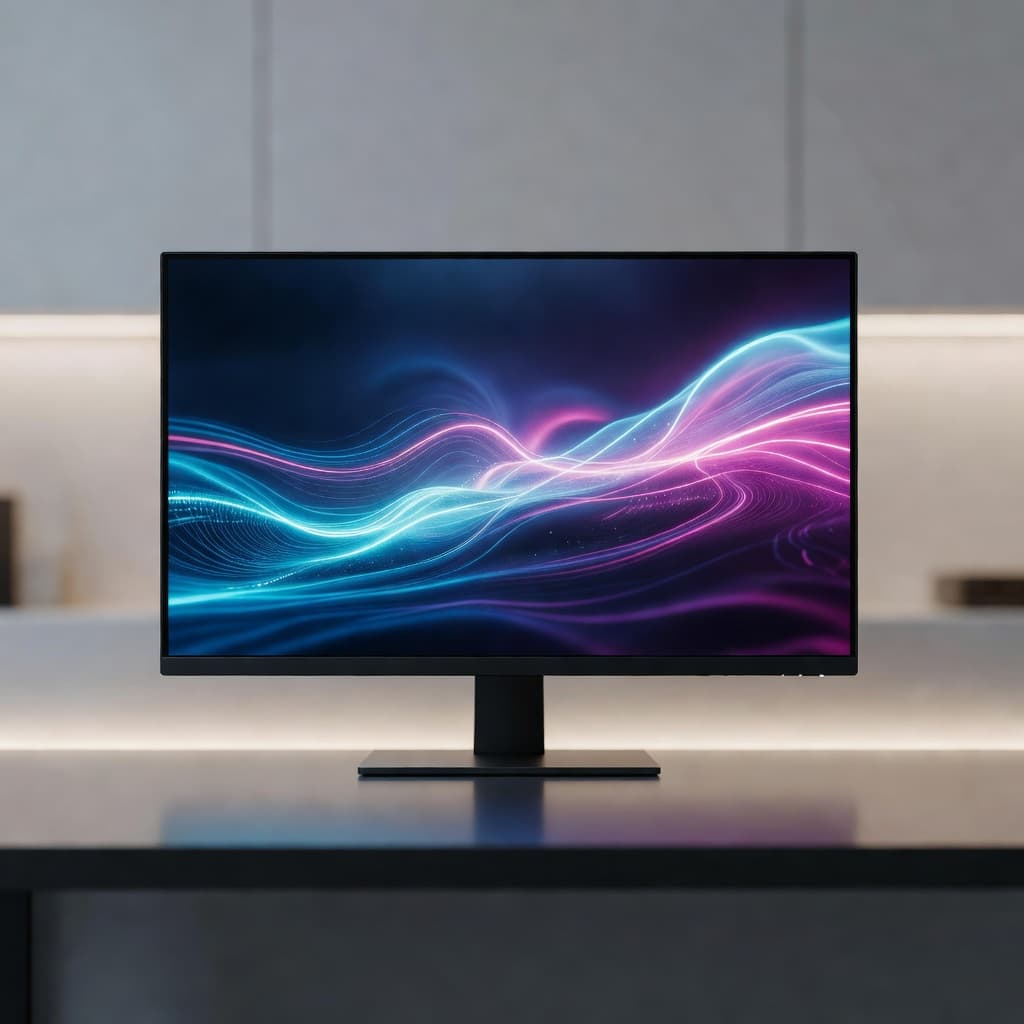
Use the best cable and port for your monitor
For very high refresh rates, DisplayPort is usually the safest choice. HDMI can work too, but only if both the GPU and monitor support enough bandwidth for your resolution and refresh target.
Also, plug the cable into the graphics card, not the motherboard, if you use a discrete GPU. Some monitors also need a high-refresh setting enabled in the on-screen menu. ASUS offers a helpful high-refresh monitor setup guide if you want a second check.
Tune monitor features for cleaner motion
Turn on VRR, such as FreeSync or G-SYNC Compatible, if your monitor supports it. That helps reduce tearing and makes frame drops look less harsh.
Next, test overdrive. The highest setting often creates bright trails or inverse ghosting. In many cases, "Normal" or "Fast" looks better than "Fastest." The goal is clean motion, not the most aggressive response mode.
Make your PC easier to run at high FPS
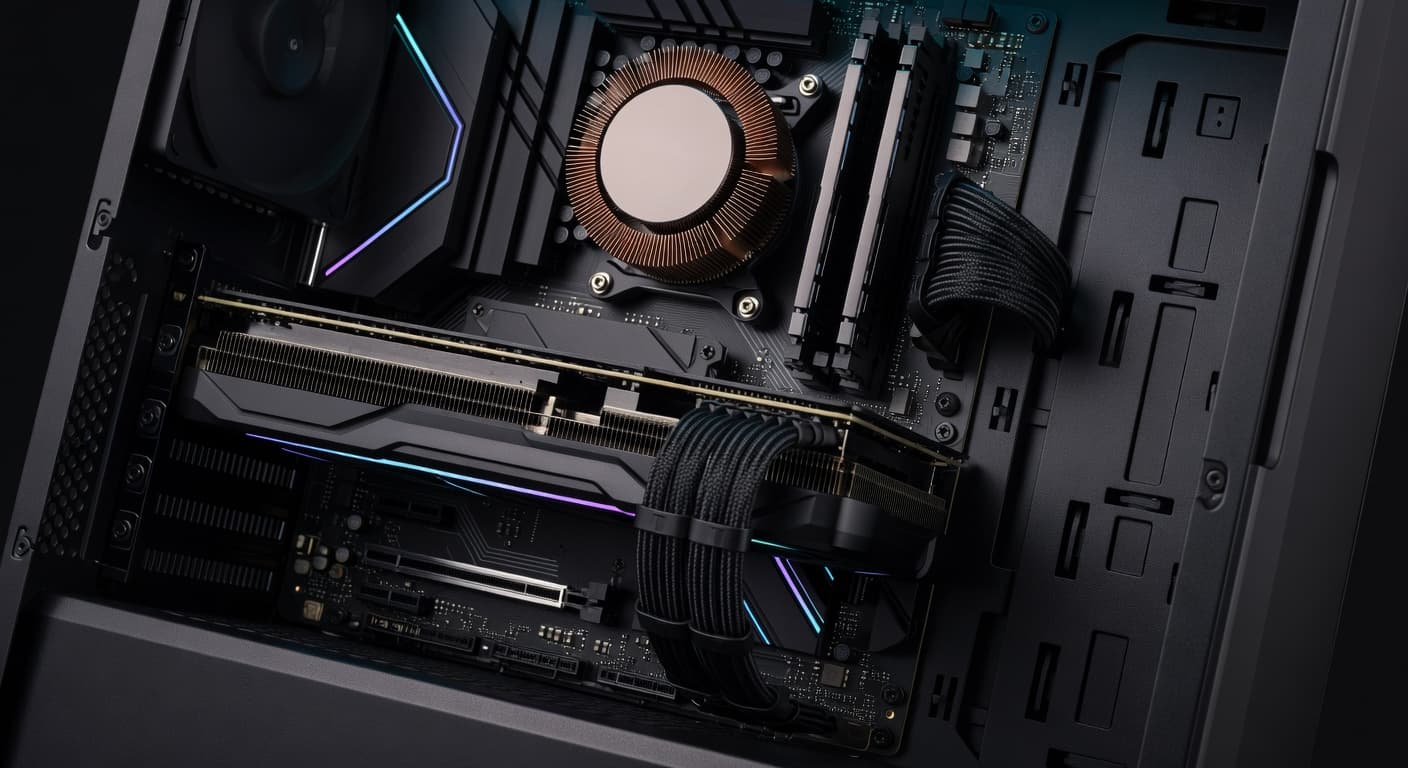
High refresh gaming is about feeding the monitor enough frames, then keeping those frames evenly spaced. A strong GPU helps, but CPU speed, RAM headroom, storage, cooling, and background load all affect how smooth the game feels. If temps rise too far, clocks drop, and your frame rate can sink with them.
Keep GPU and monitor drivers current
Fresh GPU drivers often fix stutter, VRR bugs, and poor game performance, especially in newer releases. That's why NVIDIA, AMD, and Intel updates matter most when you're playing recent games or using newer hardware.
Monitor firmware and driver files can matter too, though less often. If adaptive sync acts strange, check the monitor maker's support page.
Reduce the settings that hit FPS the hardest
Don't lower everything at once. Start with the heavy hitters: ray tracing, shadow quality, volumetrics, reflections, and extreme anti-aliasing. Those settings can crush FPS while adding only small gains during actual play.
If a game supports DLSS, FSR, or XeSS, test a balanced mode. Upscaling often gives a bigger boost than dropping ten smaller settings one by one.
Close background apps that steal CPU and memory
Browsers, launchers, RGB tools, overlays, chat apps, and recording software can chew through CPU time and memory. That often shows up as frame-time spikes instead of a big average FPS drop.
Before you launch a game, trim the clutter. Windows Game Mode is worth turning on, and high-performance power settings can help stop unnecessary throttling. HP's PC gaming optimization guide also points to Game Mode and low-latency tweaks that are still relevant in 2026.
Know when your CPU or GPU is the real limit
A bottleneck is simple: one part can't keep up, so the other waits. At 1080p and very high refresh rates, the CPU often becomes the limit first. At 1440p or 4K with heavier settings, the GPU usually takes the hit.
If GPU usage stays near 99 percent, lower graphics settings or use upscaling. If GPU usage swings around while one or two CPU cores are maxed, you're likely CPU-bound. If you want a practical way to spot the weak link, this guide to boosting in-game FPS covers the usual trouble spots. Faster storage can also reduce asset-streaming stutter, and more RAM helps when newer games push memory hard.
Use game settings that match your refresh rate goals
The best setup depends on the kind of game you play. A competitive shooter and a big single-player RPG shouldn't use the same priorities.
For competitive games, favor FPS over eye candy
In shooters, fighters, and esports games, stable high FPS matters more than ultra shadows or fancy effects. Lower settings at 1080p or 1440p often give clearer motion and faster response.
That smoother image can help tracking and aim because targets update more often. Turn down motion blur, heavy post-processing, and costly lighting first.
For single-player games, aim for stable frame pacing
Story-driven games don't need to chase the highest number possible. A steady frame rate with smooth frame times often feels better than a higher average that jumps all over the place.
On a high-refresh monitor, even 90 to 120 FPS can feel great if pacing is consistent and VRR is working. Push visuals until the game starts to wobble, then step back one notch.
Cap FPS and turn on low-latency options when needed
An FPS cap can make gameplay feel steadier, especially with VRR enabled. A good starting point is a cap a few frames below the monitor's maximum refresh rate so you don't slam into the ceiling.
If the game supports NVIDIA Reflex, AMD Anti-Lag, or a similar low-latency mode, test it. The best cap and latency setting depend on the game, your hardware, and whether VRR is on.
Final thoughts
High-refresh gaming works best when the whole chain is tuned. The monitor, cable, Windows settings, drivers, system load, and in-game options all shape how smooth and responsive the result feels.
The biggest win is usually balance, not brute force. Change one setting at a time, test it in the same game, and keep the tweaks that improve motion, frame pacing, or input feel.