How To Check Bottlenecks in Your Gaming PC? [Complete Guide]
I spent money on a gaming PC expecting smooth gameplay. Instead, I got stuttering. Frame drops in busy cities. And FPS that fluctuates like crazy.
Here is the thing—checking bottlenecks in your gaming PC is not complicated. You just need to know where to look.
What Is a Bottleneck in Simple Terms
A bottleneck means one piece of hardware cannot keep up with the rest. Your GPU might be a flagship model. But if your CPU is older, it cannot process data fast enough.
Think of it like water flowing through a bottle. The narrow neck slows the flow. Same thing happens in your PC. One weak part forces everything else to wait.
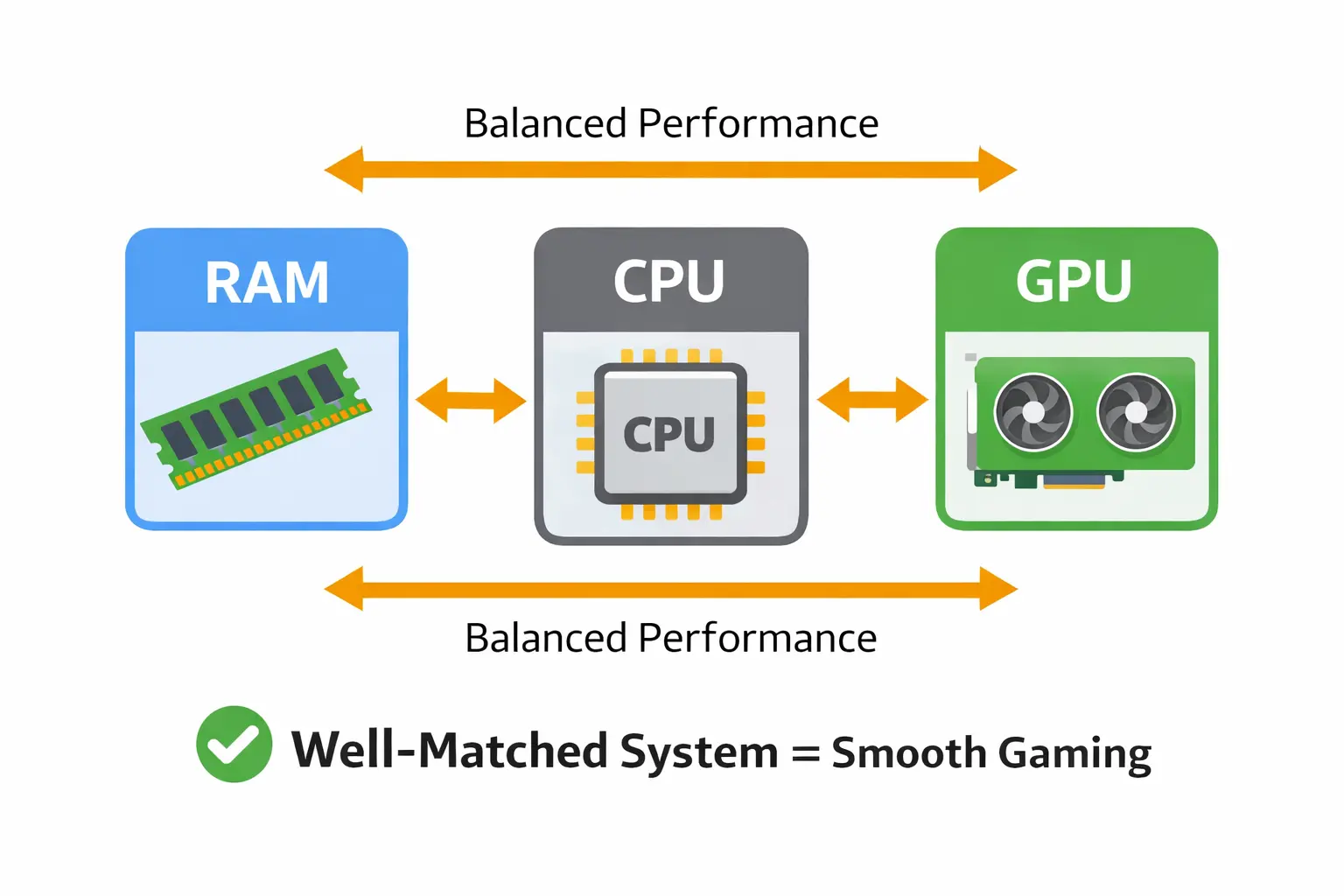
It is not about one component being bad. It is about balance. Understanding CPU vs GPU bottlenecks is key to building a well-matched system.
Signs Your Gaming PC Has a Bottleneck
Before diving into monitoring tools, learn to recognize the symptoms.
Frame Rate Issues:
- FPS drops significantly during intense scenes
- Stuttering in big fights or crowded areas
- Uneven frame times even at lower resolution
Component Usage Patterns:
- CPU hitting 100% while GPU sits at 60%
- GPU maxed out but CPU barely working
- RAM usage near maximum capacity
General Performance:
- Longer loading times than expected
- Apps feel unresponsive when multitasking
- Browser tabs cause slowdown
These signs clearly show something is limiting your potential. Pay attention to when the issue appears. Is it during specific tasks? That tells you which component is the culprit.
How To Check for CPU Bottlenecks
The CPU handles everything your system does. Gaming, compiling code, running simulations—it all depends on your processor.
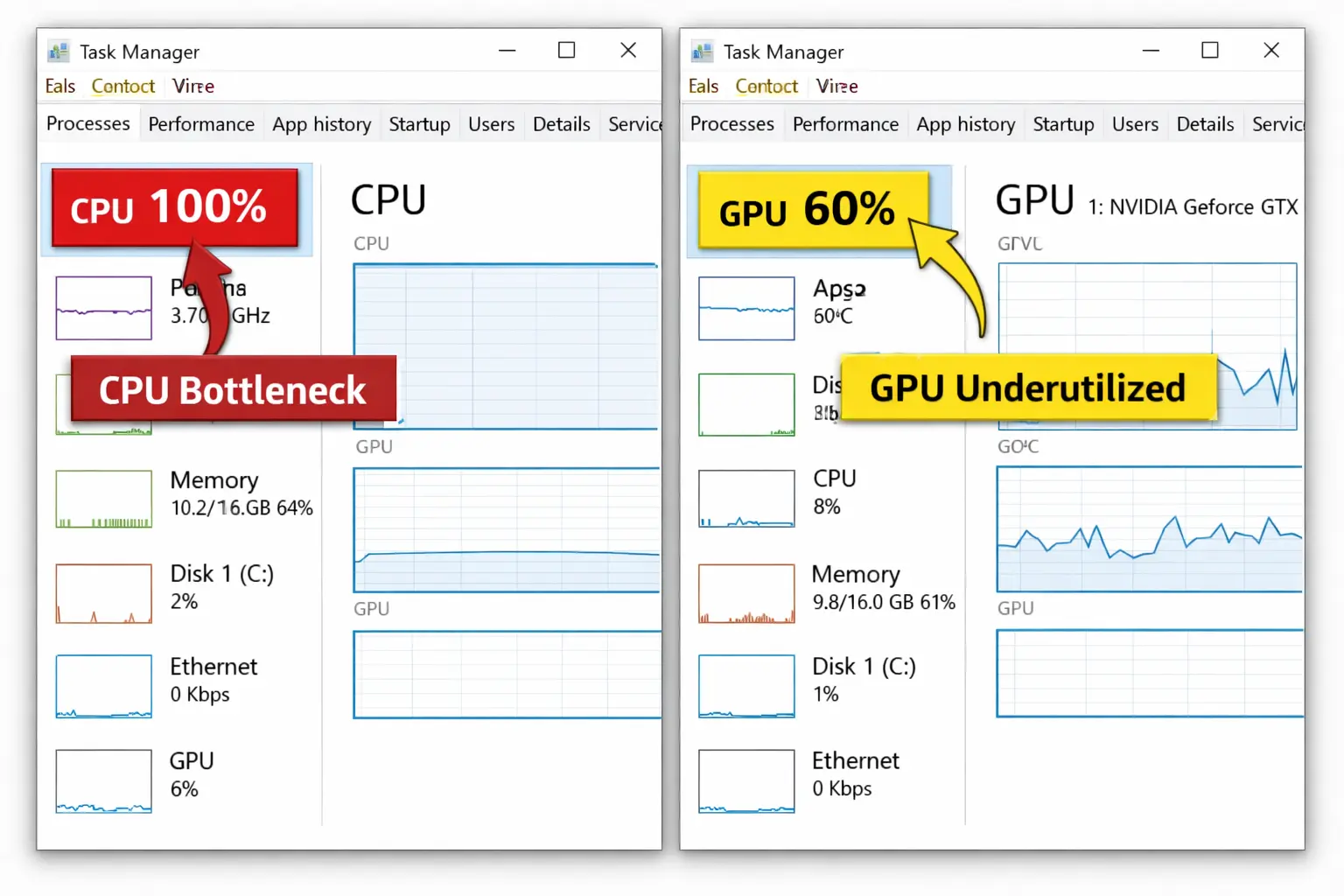
Step 1: Open Task Manager
Press Ctrl + Shift + Esc. Click the Performance tab. Watch CPU usage while gaming.
Step 2: Look for These Patterns
CPU usage stays near 90-100%. GPU usage stays low (below 80%). This means your CPU cannot feed data to your graphics card fast enough.
Step 3: Check Individual Cores
Right-click the CPU graph. Select "Change graph to" and pick "Logical processors." If one or two cores max out while others stay lower, you are dealing with a multi-core limitation.
Many games depend mainly on single-core performance.
Real-World Test:
Play your usual games for a session. Keep Task Manager open on a second monitor or desktop. Watch the numbers during busy moments.
If CPU continuously hitting 100% while GPU stays below 80%, you found your limiter.
How To Check for GPU Bottlenecks
Your graphics card handles visual quality. Shadows, anti-aliasing, ray-tracing—these demand GPU power.
Step 1: Monitor GPU Usage
Download MSI Afterburner or use Task Manager's GPU section. Launch your game. Play at your target resolution and settings.
Step 2: Recognize the Pattern
GPU usage near 95-100%. CPU usage stays reasonable (below 70%). This is actually fine—your GPU should be fully utilized in most gaming scenarios.
Step 3: Test Different Settings
Lower visual quality options like shadow detail or draw distance. If FPS improves noticeably, your GPU was the limit. If nothing changes, look elsewhere.
The Twist:
A GPU bottleneck is not always bad. It means you are getting everything from your graphics card. But if you want higher frame rates, you will need to upgrade or reduce settings.
How To Check for RAM and Memory Issues
RAM acts as short-term memory for your PC. Games, apps, and background processes all need space here.
Signs of RAM Bottlenecks:
- System feels sluggish when switching between games and browser tabs
- Long pauses when opening applications
- Frequent disk activity even with an SSD
How to Check:
Open Task Manager. Go to Performance > Memory. Watch usage during your workload.
What the Numbers Mean:
- Above 90% usage: You need more memory
- Below 70% usage: RAM is not your problem
- Between 70-90%: Depends on what you are doing
Quick Fix:
Close unnecessary programs and browser tabs. Disable startup apps you do not need. This frees up memory for gaming.
Long-Term Solution:
Add extra RAM sticks. Aim for at least 16GB for modern games. 32GB if you do creative work, streaming, or heavy multitasking.
Make sure you are running dual-channel configuration with matched modules. Does RAM speed matter? Yes, especially for CPU-bound scenarios.
Storage and Disk Bottlenecks
Your storage drive affects loading times and overall system responsiveness. An old HDD can create delays that feel like other bottlenecks.
How to Spot It:
- Boot times take minutes
- Games have long loading screens
- File transfers feel extremely slow
Check Your Disk:
Task Manager > Performance > Disk. Look at active time percentage. If it stays at 100% during normal use, your storage is overwhelmed.
The Fix:
Replace your HDD with an SSD or NVMe drive. This dramatically improves daily experience. It will not boost FPS directly. But everything from launching games to opening project files gets faster.
Pro Tip:
Use an SSD for your operating system and frequently used games. Keep bulk storage like videos and large libraries on an HDD if budget is tight.
Using Performance-Monitoring Tools
Task Manager gives you baseline information. But for detailed analysis, I prefer lightweight monitoring software.
MSI Afterburner:
Shows real-time GPU usage, temps, and memory. Free and works with any graphics card.
HWiNFO:
Displays everything—CPU, GPU, RAM, temperatures, and power. Useful for spotting thermal throttle issues.
In-Game Overlays:
Many games have built-in performance metrics. Press a key combination to show FPS, frame time, and resource usage.
What to Watch:
- CPU and GPU usage percentages
- Temperature readings (thermal issues can cause throttling)
- RAM usage and availability
- Frame time graphs (shows stuttering even when average FPS looks fine)
These tools help you see exactly what is happening in real time. You will spot patterns during specific tasks. And you will know which component needs attention.
What Online Calculators Tell You
You have probably heard of bottleneck calculators. These websites let you enter your specs. Then they estimate percentage labels showing potential mismatch.
Are They Helpful?
They give you a rough idea. Useful for sanity-checking planned builds. But treat them as starting points, not exact answers.
The Limitation:
Every game and application behaves differently. Warzone might need a faster CPU. A creative tool could depend more on RAM and storage. Calculators cannot account for your specific workload.
Better Approach:
Compare real benchmarks from users with similar configurations. Look at YouTube videos showing your exact parts in the games you play. This gives you reliable information about what to expect.
Tips for Preventing Bottlenecks When Building
Here is what I have learned from multiple PC builds:
1. Match Your Component Tiers
Pair a mid-range CPU with a mid-range GPU. Do not combine entry-level processors with flagship graphics cards. The best combinations deliver consistent performance.
2. Prioritize Your Use Case
Gaming at 1080p? Focus on a stronger GPU and reasonably fast CPU. Gaming at 4K? GPU becomes even more important. CPU matters less since higher resolution shifts the workload to graphics.
3. Do Not Forget RAM Speed
Faster memory helps in CPU-bound scenarios. Get at least 3200MHz for modern platforms. Make sure modules are compatible with your motherboard.
4. Plan for Cooling
A powerful CPU or GPU means nothing if it overheats. Throttling reduces performance automatically. Invest in proper cooling—whether air or liquid systems. Good airflow in your case matters too.
5. Check Power Supply
An inadequate PSU can limit your entire build. It might not deliver enough power under load. Or worse, cause instability and crashes. Choose a reliable unit with headroom above your needs.
6. Consider Future Upgrades
Buy a motherboard with expansion slots. Get a PSU that can handle a more powerful GPU later. Think in terms of what you might upgrade in two years.
Simple Optimization Steps To Try First
Before spending money on upgrades, optimize what you have:
Lower In-Game Settings:
Reduce shadow quality and draw distance. Turn down anti-aliasing. Disable CPU-intensive features like physics simulations. These adjustments can dramatically improve FPS.
Close Background Apps:
Programs running behind your game consume resources. Close browser tabs, streaming software, and unnecessary apps. Disable startup programs you do not use daily.
Update Drivers:
Outdated GPU drivers can limit performance. Check for the latest version. Same applies to motherboard firmware and chipset drivers.
Adjust Windows Settings:
Disable visual animations and effects. Turn off unnecessary features. Set your power plan to high performance.
Clean Your PC:
Dust buildup reduces cooling efficiency. This leads to thermal throttle. A simple cleaning can restore lost performance.
When Should You Actually Upgrade
Not every performance issue needs new hardware. But sometimes fixing bottlenecks means replacing parts.
Upgrade Your CPU If:
- It is more than 5-6 generations old
- Usage stays maxed while GPU sits underused
- You are doing multi-core work like video rendering or compiling
Upgrade Your GPU If:
- You want higher resolution or visual quality
- Your current card struggles at even low settings
- You are targeting 144Hz or higher refresh rates
Add More RAM If:
- Usage regularly exceeds 90%
- You multitask heavily or use creative software
- You want smoother performance in memory-intensive games
Replace Your Storage If:
- You are still using an HDD as your primary drive
- Boot and loading times feel painfully slow
- System responsiveness suffers even with decent CPU and GPU
Conclusion
How to check bottlenecks in your gaming PC comes down to observation. Watch your component usage. Test different scenarios. Look for clear patterns.
Most bottlenecks are obvious once you know what to monitor. And the simplest fix is not always buying the strongest part. It is about building a balanced system where everything works together.
Use monitoring tools. Compare your results to benchmarks. Make informed decisions instead of chasing the latest hardware. Start with optimization and settings adjustment. If that does not help, then plan your upgrade sensibly.
Check your system. Understand your limits. Build smart. Game smoothly.
FAQs
What causes a bottleneck in a gaming PC?
A bottleneck occurs when one component cannot keep up with the rest of your system. Common causes include pairing a high-end GPU with an outdated CPU, insufficient RAM for your workload, or using an old HDD instead of an SSD. The key is balance between all parts.
How do I know if my CPU or GPU is bottlenecking?
Open Task Manager while gaming and check usage percentages. If your CPU sits at 95-100% while GPU stays below 80%, you have a CPU bottleneck. If GPU maxes out near 100% while CPU remains lower, that is GPU-bound. The component at maximum usage is typically your limiter.
Is a GPU bottleneck bad for my PC?
No, a GPU bottleneck during gaming is actually normal and acceptable. It means your graphics card is fully utilized, which is what you want. The only issue is if you want higher frame rates—then you will need to lower settings or upgrade. It will not damage your components.
Can RAM cause bottlenecks in gaming?
Yes, insufficient RAM can create noticeable bottlenecks. If usage exceeds 90%, your system starts using slower storage as virtual memory. This causes stuttering, longer loading times, and poor multitasking performance. Modern games need at least 16GB of RAM.
Do I need to upgrade immediately if I find a bottleneck?
Not necessarily. First, try optimizing your current setup. Lower in-game settings, close background programs, update drivers, and clean your PC. Many performance issues improve with simple adjustments. Only upgrade if optimization does not help and the bottleneck significantly affects your experience.
Are bottleneck calculators accurate for checking my PC?
Bottleneck calculators provide rough estimates but are not perfectly accurate. They give you a starting point for sanity-checking builds. However, they cannot account for specific games, applications, or your particular workload. Real-world benchmarks from users with similar configurations are more reliable.
Will a faster SSD fix my gaming bottleneck?
An SSD improves loading times and system responsiveness but will not directly boost FPS. If you are using an HDD, switching to an SSD makes everything feel faster. However, it does not solve CPU or GPU bottlenecks. Your in-game frame rate depends on processor and graphics card performance.